Xodera Plugins · Bubble Native
Xodera QR Passes Native
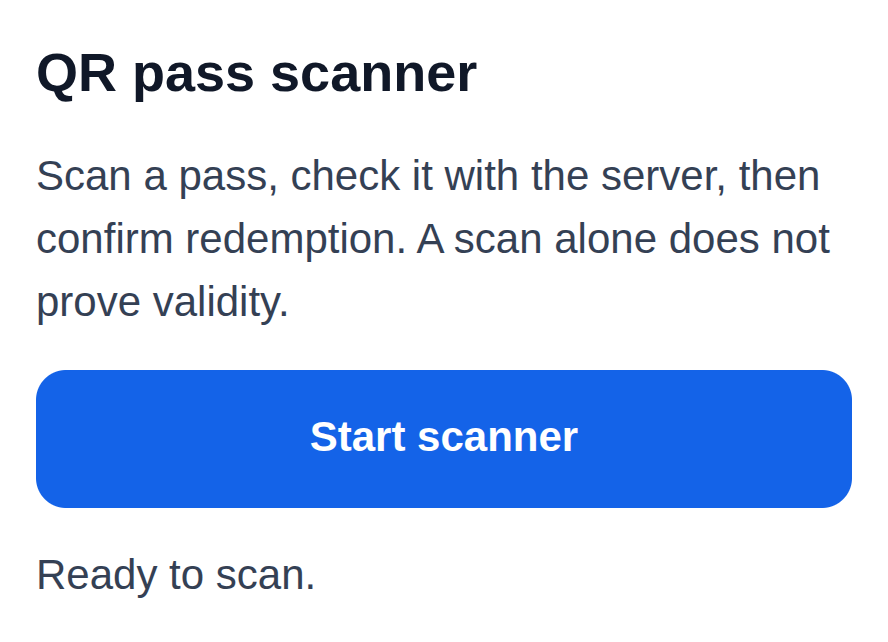
Build one-use tickets, pickup confirmations or coupons. Staff scan the code, check the result, preview the order and confirm use only when ready.
Public beta guides · Haptics instructions are in its Bubble listing
Public beta offer: free Bubble install · 7-day card trial, then US$1.50/month per plugin/project.
Documentation reviewed 6 November 2026
Practical examples
One-use admission for a same-day event
A screenshot of an ordinary QR value can otherwise be reused at more than one entrance.
Your app stores an Admission record and a stable issue `request_id`; use curated `label=event` and a `ttl_seconds` within the 1–86400-second contract.
An authorized issuer runs Issue QR pass and privately delivers the returned QR. Staff scan → Check QR pass → confirm only if `ok=yes` and `status=available` → Confirm QR redemption with a stored stable request ID.
Only `status=redeemed` plus `receipt_id` authorizes your app’s admission receipt. Store the pass/receipt reference on the Admission; do not expose QR contents to analytics.
For `outcome_unknown`, recover the same request with identical user/environment/pass; never generate a new confirmation ID. Handle expired, revoked and already-used states as distinct outcomes.
Planned. Scanning and checking do not use the pass; only explicit confirmation does.
Redeem a short-lived benefit once at a partner counter
A partner needs a confirmed used/unused result instead of trusting a QR image or a screen animation.
`label=coupon`; the app’s Benefit record defines eligibility and a short validity window before an authorized issue action.
Issue a pass only after your app’s eligibility check. At the counter, Check QR pass shows availability without consuming it. After the staff member confirms delivery of the benefit, run Confirm QR redemption.
Your Benefit record may store `receipt_id` and the confirmed redemption time after `status=redeemed`. The plugin manages pass state; your app manages the benefit and customer relationship.
If a benefit is cancelled before use, the same authorized issuer can Revoke QR pass using its `pass_id`. Do not announce a refund or successful redemption from `ok=yes` alone.
Planned. Scanning and checking do not use the pass; only explicit confirmation does.
Confirm a same-day equipment or order pickup
A staff workflow needs to distinguish scanning a collection reference from actually handing over an item.
Your app’s owned Collection record keeps authorization, the intended item and separate stable issue/redemption request IDs; use a short-lived `label=access` pass.
After your app authorizes collection, Issue QR pass. Staff scan and Check, inspect the matching Collection in your app, then explicitly confirm the handover and Confirm QR redemption.
Only after a confirmed `redeemed` receipt should your workflow set the Collection to handed over. Keep `receipt_id` as the link to the pass outcome.
A repeated scan may return already_used; display the existing app record instead of handing over another item. Recover an uncertain confirmation with the same ID and inputs.
Planned. Scanning and checking do not use the pass; only explicit confirmation does.
What works now
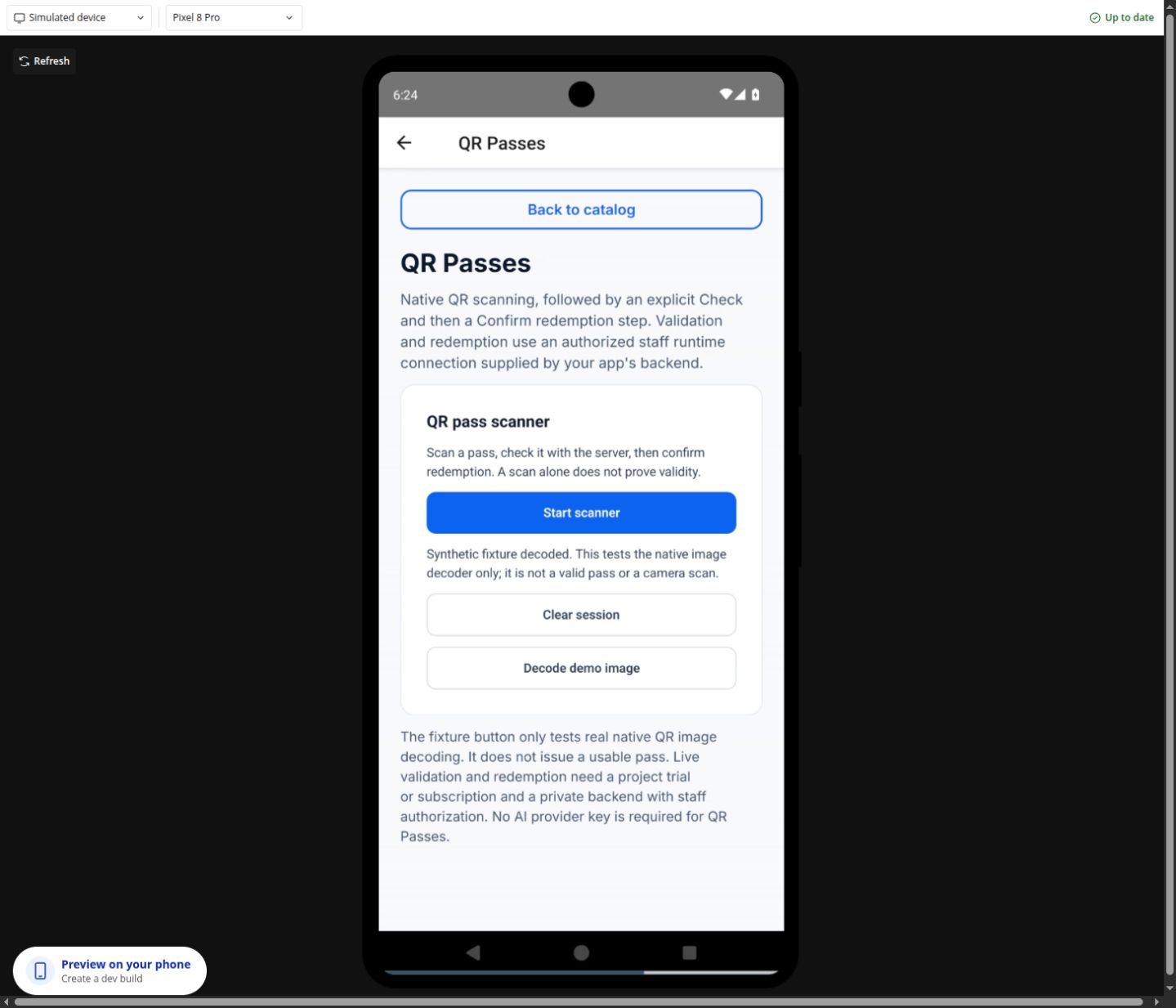
Private beta. The current scanner has camera and permission controls. Creating, checking and confirming one-use passes is planned and is not ready to use in your app yet.
Build the workflow
Planned
Planned workflow. Not available in the current beta yet.
These examples use app records such as Lesson, Message and Order. Replace them with your own data types and element names. Example media addresses must be replaced with your own files.
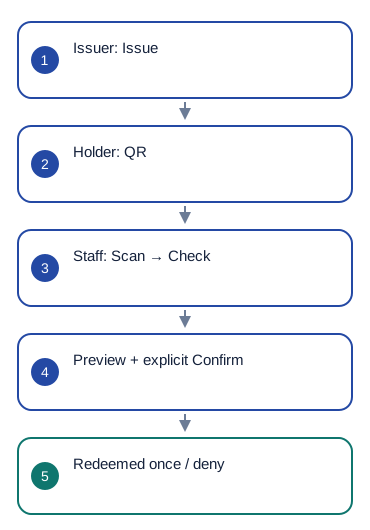
Planned: an authorized employee uses Issue QR pass for an Admission or Order. Example: label=event, ttl_seconds=900, environment=development. Keep a stable request_id for that issue and save pass_id with the record.
Show the returned QR to its intended holder. Staff scan it. In the planned pass workflow, use workflow_mode=yes and read scanned_pass_token after pass_scanned. These pass-workflow settings are not available in the current scanner.
Run Check QR pass with pass_token = QR Scanner's scanned_pass_token. It checks without using the pass. For status=available, show the matching order or entry details so staff can review them.
Only a separate Confirm button runs Confirm QR redemption with the same pass_token, a stable request_id and confirm=yes. On status=redeemed, save receipt_id and mark that order or entry complete.
already_used, expired, revoked or invalid means do not admit or hand over the order. A scan or a successful Check alone never completes the transaction.
Configure once
Create or choose your Bubble app project in BestPlugins → Dashboard → Plugins. Choose Xodera QR Passes Native, copy its key, then open Bubble → Plugins → Xodera QR Passes Native and paste it into project_api_key. Save once; then use the actions below. Each plugin in each project has its own key.
Scanning needs camera permission. For one-use passes, decide who may create passes and who may check them at the door or pickup point. Ordinary customers need neither staff role.
qr_issuer_permission_field
qr_pass_issuer · Name of the User yes/no field that marks employees allowed to create or revoke passes. Example/default: qr_pass_issuer. Put the field name here, not yes or no. Only an authorized administrator should change that permission on a user.
qr_staff_permission_field
qr_staff · Name of the User yes/no field that marks staff allowed to check and confirm use. Example/default: qr_staff. A ticket holder does not need this permission. Keep it out of public signup and profile forms.
Configure once
- Create or choose your Bubble app project at BestPlugins → Dashboard → Plugins.
- Choose this plugin and copy its project key.
- Open Bubble → Plugins → Xodera QR Passes Native; paste the key into project_api_key and save.
- Add the element, choose your app data and build the workflow below.
- Private beta access only for now. Public installation and paid activation are not open yet.
Installation and subscription
For Audio Player, Video Player, Photo Editor, Audio Recorder, Files Kit and Haptics: free Bubble installation, a 7-day trial with a card, then US$1.50 per month per plugin and app project. Development and production are included, with no operation cap. File-size and feature limits still apply. Review billing and cancellation before confirming. Other plugins remain unavailable for purchase.
Save the result in your app
Example Admission or Pickup: save the related order/event, pass_id, expires_at and issue_request_id. After confirmed use, add receipt_id, redeemed_at and the employee who confirmed. Do not mark the record complete when the code is merely scanned or checked. A QR code does not verify a person’s identity.
Failure, cancel and recovery
If outcome_unknown=yes, keep the same pass, request_id and inputs when checking the result again. Do not create a new confirmation. already_used, expired and revoked are final business results. If permission is denied, ask an authorized administrator to review the employee’s role. Clear session resets the scanner; it cannot undo a completed use.
Capabilities and limits
Planned passes are single-use, with a lifetime of 1–86400 seconds; default 900. Pass types: access, event, coupon and membership. Checking does not reserve a pass. Internet access is required for pass use. No payment processing, identity check or reusable long-term membership card. Reading an ordinary QR value is separate from checking a pass.
Settings, actions and results
Use these names in Bubble. Planned features are marked separately.
Available beta settings
Element settings
disabled · yes/nois_active · yes/noui_text_json · textlanguage · textStates
scanner_status · textserver_status · textpass_id · textpass_label · textreceipt_id · texterror_code · textis_busy · yes/nois_scanning · yes/notorch_enabled · yes/noscan_source · textpending_redemption · yes/noEvents
scanner_startedscanner_pausedscanner_cancelledpermission_deniedpass_scannedvalidation_startedvalidation_completedredemption_startedpass_redeemedredemption_rejectedredemption_pendingfixture_decodedqr_errorActions and their inputs
Clear sessionElement settings · 5
Planned workflow. Not available in the current beta yet.
disabledyes/no · Default: false- Example value
no - Example Bubble expression
GuideHost's is_busy (your yes/no custom state) - Disable the element while your app is busy or this action is unavailable.
is_activeyes/no · Default: true- Example value
yes - Example Bubble expression
GuideHost's view_is_active (your yes/no custom state) - Set yes while this view is open. Set no when leaving, so playback or current work can stop.
ui_text_jsontext · Default: "{}"- Example value
{} - Example Bubble expression
App Settings' player_labels_json (supported keys only) - Optional JSON with supported button labels. Leave empty to use the built-in text.
languagetext · Default: "auto"- Example value
uk - Example Bubble expression
Current User's preferred_language - Set language=auto to follow a supported device or browser language. Enter a supported language code to choose it explicitly.
workflow_modeyes/no · Default: false- Example value
yes - Example Bubble expression
App Settings' use_qr_business_actions - Planned: allow the scanned QR value to be used by Check QR pass. Scanning alone does not confirm entry or pickup.
Actions and their inputs · 5
Planned workflow. Not available in the current beta yet.
Clear session
No action parameters
Issue QR pass
environmenttext · Default: "development"- Example value
development - Example Bubble expression
App Settings' selected_environment - Use the current business record’s value; validate it against the limits below.
request_idtext · Default: —- Example value
pickup-123-issue-v1 - Example Bubble expression
Current Admission's stable_request_id - Use the current business record’s value; validate it against the limits below.
labeltext · Default: "access"- Example value
event - Example Bubble expression
Selected Admission's pass_label - Use the current business record’s value; validate it against the limits below.
ttl_secondsnumber · Default: 900- Example value
900 - Example Bubble expression
Event Settings' pass_ttl_seconds - Use the current business record’s value; validate it against the limits below.
Returns
pass_id · textpass_token · textpass_label · textexpires_at · textqr_png_data_uri · textreused · yes/noCheck QR pass
environmenttext · Default: "development"- Example value
development - Example Bubble expression
App Settings' selected_environment - Use the current business record’s value; validate it against the limits below.
pass_tokentext · Default: —- Example value
<opaque token returned by Issue / camera scan> - Example Bubble expression
QR Pass Scanner's scanned_pass_token (capture before Check) - Use the current business record’s value; validate it against the limits below.
Returns
pass_label · textexpires_at · textConfirm QR redemption
environmenttext · Default: "development"- Example value
development - Example Bubble expression
App Settings' selected_environment - Use the current business record’s value; validate it against the limits below.
pass_tokentext · Default: —- Example value
<opaque token returned by Issue / camera scan> - Example Bubble expression
QR Pass Scanner's scanned_pass_token (capture before Check) - Use the current business record’s value; validate it against the limits below.
request_idtext · Default: —- Example value
pickup-123-redeem-v1 - Example Bubble expression
Current Admission's stable_redemption_request_id - Use the current business record’s value; validate it against the limits below.
confirmyes/no · Default: false- Example value
yes — explicit confirmation only - Example Bubble expression
Confirm Checkbox is checked - Use the current business record’s value; validate it against the limits below.
Returns
pass_id · textpass_label · textreceipt_id · textredeemed_at · textreused · yes/noRevoke QR pass
environmenttext · Default: "development"- Example value
development - Example Bubble expression
App Settings' selected_environment - Use the current business record’s value; validate it against the limits below.
pass_idtext · Default: —- Example value
<pass_id returned by Issue> - Example Bubble expression
Selected Admission's pass_id - Use the current business record’s value; validate it against the limits below.
Returns
pass_id · textrevoked · yes/noStates and events
Planned workflow. Not available in the current beta yet.
States
scanner_status · textCurrent result of this action. Use the matching completion event before saving success. idle,requesting_permission,permission_denied,scanning,paused,scanned,validating,available,redeeming,redeemed,unavailable,unknown,error,cancelled,decoding_fixture,fixture_decoded
server_status · textCurrent result of this action. Use the matching completion event before saving success. empty,available,redeemed,already_used,expired,revoked
pass_id · textIdentifier for this item or action. Keep it with the matching app record. Use the same request identifier when retrying an uncertain result.
pass_label · textCurrent value for the selected item. Read it after the related event. empty,access,event,coupon,membership
receipt_id · textIdentifier for this item or action. Keep it with the matching app record. Use the same request identifier when retrying an uncertain result.
error_code · textError information for the last action. Show a helpful message and offer the relevant retry.
is_busy · yes/noWork is still in progress. Wait before starting another action.
is_scanning · yes/noCurrent value for the selected item. Read it after the related event.
torch_enabled · yes/noCurrent value for the selected item. Read it after the related event.
scan_source · textCurrent value for the selected item. Read it after the related event. empty,camera,fixture
pending_redemption · yes/noCurrent value for the selected item. Read it after the related event.
scanned_pass_token · textCurrent value for the selected item. Read it after the related event.
Events
scanner_startedWhen this event occurs, read the related states from the same element.
scanner_pausedWhen this event occurs, read the related states from the same element.
scanner_cancelledWhen this event occurs, read the related states from the same element.
permission_deniedWhen this event occurs, read the related states from the same element.
pass_scannedWhen this event occurs, read the related states from the same element.
validation_startedWhen this event occurs, read the related states from the same element.
validation_completedWhen this event occurs, read the related states from the same element.
redemption_startedWhen this event occurs, read the related states from the same element.
pass_redeemedWhen this event occurs, read the related states from the same element.
redemption_rejectedWhen this event occurs, read the related states from the same element.
redemption_pendingWhen this event occurs, read the related states from the same element.
fixture_decodedWhen this event occurs, read the related states from the same element.
qr_errorWhen this event occurs, read the related states from the same element.
Questions developers ask
What do the two permission settings mean?
Name of the User yes/no field that marks employees allowed to create or revoke passes. Example/default: qr_pass_issuer. Put the field name here, not yes or no. Only an authorized administrator should change that permission on a user. Name of the User yes/no field that marks staff allowed to check and confirm use. Example/default: qr_staff. A ticket holder does not need this permission. Keep it out of public signup and profile forms.
Can the same employee create and check passes?
Yes, if an authorized administrator gives that employee both permissions. This does not require another project key. Customers normally need neither permission. Do not let users assign these permissions to themselves.
Why use Check after Scan?
Scan reads the code. Check asks whether the pass is available without using it. Staff can review the order first. Only the separate Confirm QR redemption action uses the pass once.
How does the subscription work?
Planned pricing: installing the plugin in Bubble is free. BestPlugins access is a separate subscription for each plugin in each Bubble app project: 7 days free, then US$1.50 per month. Development and Live are included. There is no fixed limit on the number of operations; file-size and feature limits still apply. Checkout is not open yet. The activation screen will show the first billing date and cancellation terms.
More product examples
Related guides
Marketplace release pending
Forum guide not posted
For help, tell us which plugin and device you use, the action you tried and what happened. Use an example without personal data. Never share your key or private files.