 View full screenshot
XODERA / NATIVE LABPublic guide • no sign-in
Native plugins • beta
Native tools.See how they work.
Explore five Bubble mobile experiments, see real Android results, and connect each element to your app’s data and workflows. Start with the public guide; interactive native access has separate limits.
Developer preview only: Bubble requires you to sign in as an app collaborator. This guide and its screenshots need no account. Anonymous interactive simulator access awaits a verified public build.
Native Video Player ANDROID
 View full screenshot
NATIVE / ANDROID
Real screens. Clear expectations.
These are captures from our Bubble hosted Android simulator, using synthetic sample content. Open any screen at full size. They are evidence of the displayed state, not a physical-device certification.
View full screenshot View full screenshot

 View full screenshot

 View full screenshot
 View full screenshot

SETUP / BUBBLE
From an element to your workflow
Each demo below explains its inputs, controls, Bubble events and outputs. Technical names stay in English so you can find the exact field in the editor.
Configure once
Create or choose your Bubble app project at BestPlugins → Dashboard → Plugins.
Choose this plugin and copy its project key.
In Bubble → Plugins → the selected plugin, paste its key into licensing_api_key for Audio, Video, Photo, Recorder or Offline Files; use project_api_key for Documents AI, QR Passes or B2 Files. If key activation is marked Planned, wait until it is available.
Add the element, choose your app data and build the workflow below.
Audio Player, Video Player, Photo Editor, Audio Recorder and Files Kit: free Bubble installation, then a 7-day trial with a card and US$1.50 per month per plugin and app project. Development and Live are included. No operation cap; file-size and feature limits still apply. Review the first billing date and cancellation terms before confirming. Other plugins remain planned.
The five media and file plugins are public betas. Optional private Native Lab demos below have separate access limits and do not activate a subscription.
01 / Set up the native view
Install the selected public beta in your Bubble native mobile app. For plugins marked Planned or Private draft, access remains unavailable. This guide does not grant access to private Native Lab demos.
Place the named element on a native view. Give media elements a visible size. Bind dynamic input fields to your app’s data or an input value; use synthetic files first.
Bind is_active to the view’s focus or visibility where the element provides it. Use disabled to gate interaction. Keep provider and private plugin server keys out of all native fields and URLs.
After changing plugins or native permissions, rebuild the simulated device when Bubble requests it. An old build can keep running while the new build is prepared.
02 / Choose the right preview
Use Bubble’s preview dropdown → Simulated device to run native libraries. A browser web preview alone cannot validate these native elements.
The official developer preview opens the Home view and requires an existing signed-in Bubble collaborator on this app. A regular Bubble account alone is not sufficient. It does not grant collaborator access or anonymous simulator access.
Try the supplied synthetic samples first, then check your own authorized files. Camera, permissions, audio routing and device-specific behavior need a real Android or iPhone test.
Developer preview only: Bubble requires you to sign in as an app collaborator. This guide and its screenshots need no account. Anonymous interactive simulator access awaits a verified public build.
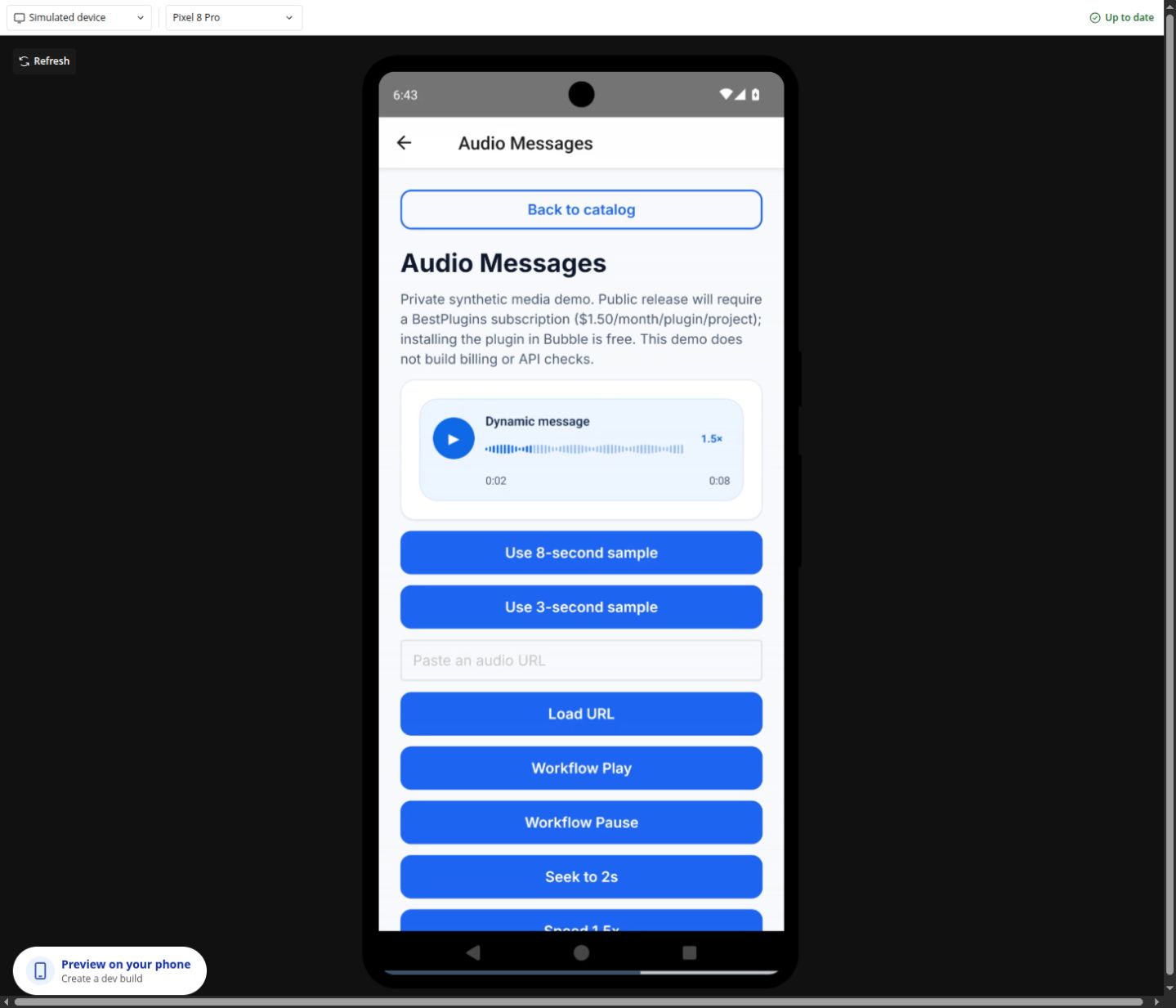
Xodera Audio Player Native
Playback betaAudio
A compact native message player for voice clips, lessons and audio attachments.
Shown in Android
Dynamic source, seek/speed controls and workflow play/seek are shown in the Android hosted simulator.
Still to validate
Physical-device audio routing and new gesture behavior remain in validation. Recording is not included.
Try it in order
Set source_url to an accessible audio URL or supported local file. Optionally set title, subtitle and waveform_peaks_json.
Press Play, seek to a position and choose a playback speed. Supply waveform peaks explicitly if you need a waveform; it is not automatic speech analysis.
Use Bubble buttons with Play, Pause or Seek. Set Seek’s seconds to a numeric position, then inspect current_time and playback_rate.
Connect a Bubble workflow
Handle ready before enabling your play control. Use seek_completed for seek completion and player_error with error_code for a safe error message.
Read the result
Read player_status, current_time, duration, progress and playback_rate. Playback does not generate a new audio file.
Reset or stop
Use Stop to stop playback; Reload source reopens the configured source. Set is_active = no when the view is inactive.
Dynamic input fields10
source_urlwaveform_peaks_jsontitlesubtitleplayback_ratevolumeloopis_activedisabledui_text_jsonExposed states13
player_statusis_playingis_loadedis_bufferingcurrent_timedurationprogressplayback_ratevolumeis_loopingwaveform_availablewaveform_statuserror_codeEvents7
readyplayback_startedplayback_pausedplayback_endedseek_completedrate_changedplayer_errorElement actions8
PlayPauseToggleStopSeek(seconds)Set speed(rate)Set volume(volume)Reload source
Reference names come from the current native element definitions. Availability of an action is separate from acceptance on every device. Expand a reference to see all names.
Native Video Player
Overlay betaVideo
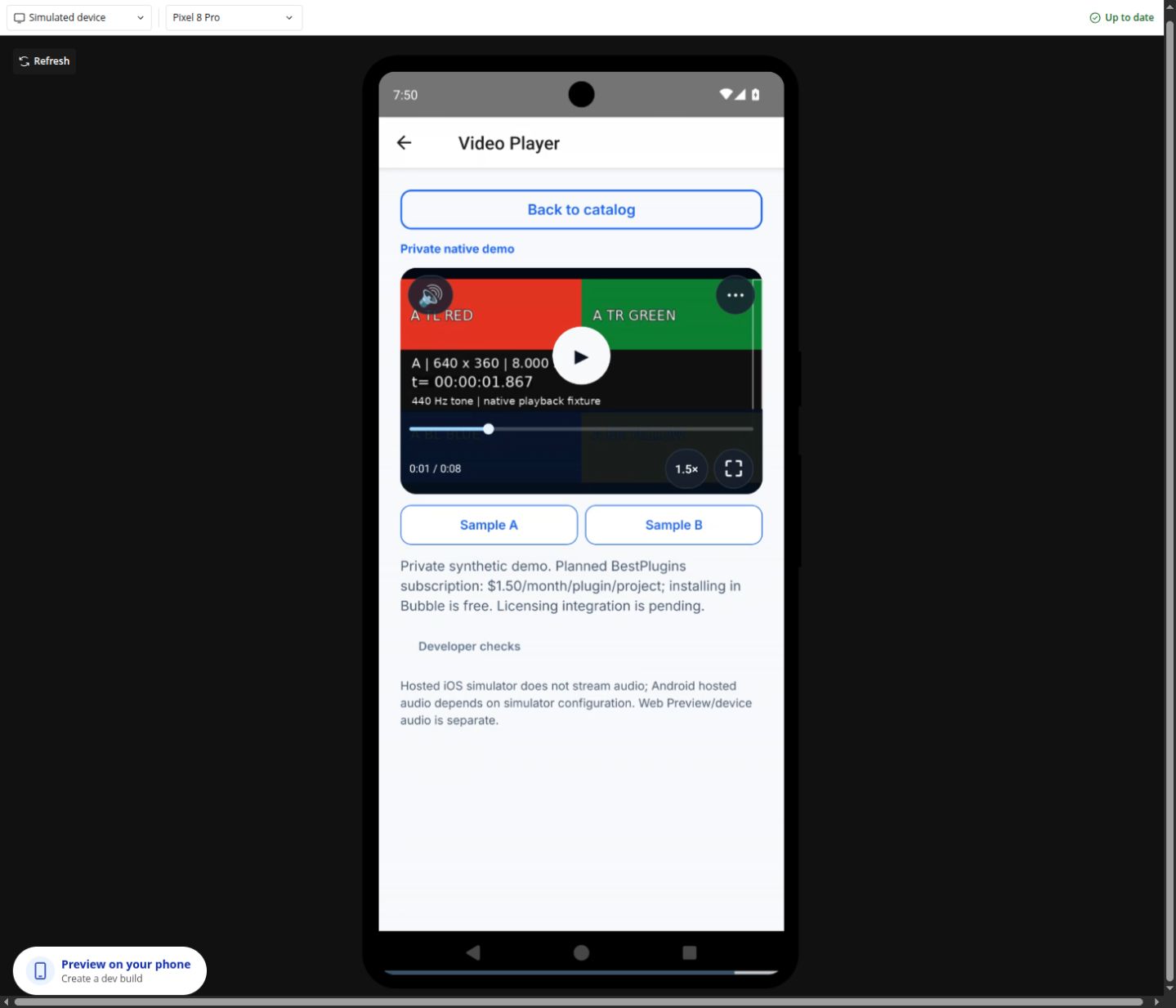
Native playback with an overlay, dynamic media sources and Bubble workflow controls.
Shown in Android
The overlay, source changes, seek/rate, workflow pause and fullscreen states have Android simulator screenshots.
Still to validate
Gestures and the latest source candidate remain in validation. Track options depend on the current source; DASH is Android-only.
Try it in order
Set source_url and optionally poster_url. Keep content_type = auto unless your source needs progressive, hls or dash.
Press the center Play control. Use the progress control, rate button, volume/mute and fullscreen controls. The menu exposes available playback options.
Wire a Bubble button to Pause or Seek. Use position_seconds for Seek, or rate for Set playback rate. Changing a source does not promise autoplay.
Connect a Bubble workflow
Use source_loaded / playback_ready for readiness, time_changed for your progress UI, and player_error with error_code. Track indexes belong only to the current source.
Read the result
Read position_seconds, duration_seconds, rate, is_fullscreen and status. This is playback, not edited-file export.
Reset or stop
Use Stop and rewind or Reload video. Set is_active = no to pause when navigating away; resuming playback requires an explicit action.
Dynamic input fields11
source_urlposter_urlcontent_typeratevolumemutedloopis_activedisablednative_controlsui_text_jsonExposed states20
is_playingis_bufferingpending_playis_livemutedloophas_sourceis_fullscreenposition_secondsduration_secondsvolumeratesource_generationselected_audio_indexselected_subtitle_indexstatusaudio_tracks_jsonsubtitle_tracks_jsonerror_codeerror_messageEvents9
source_changedsource_loadedplayback_readyplaying_changedtime_changedendedtracks_changedfullscreen_changedplayer_errorElement actions11
PlayPauseStop and rewindReload videoSeek(position_seconds)Set volume(volume)Set muted(muted)Set playback rate(rate)Enter fullscreenSelect audio track(index)Select subtitle track(index)
Reference names come from the current native element definitions. Availability of an action is separate from acceptance on every device. Expand a reference to see all names.
Photo Editor
Editor betaPhoto
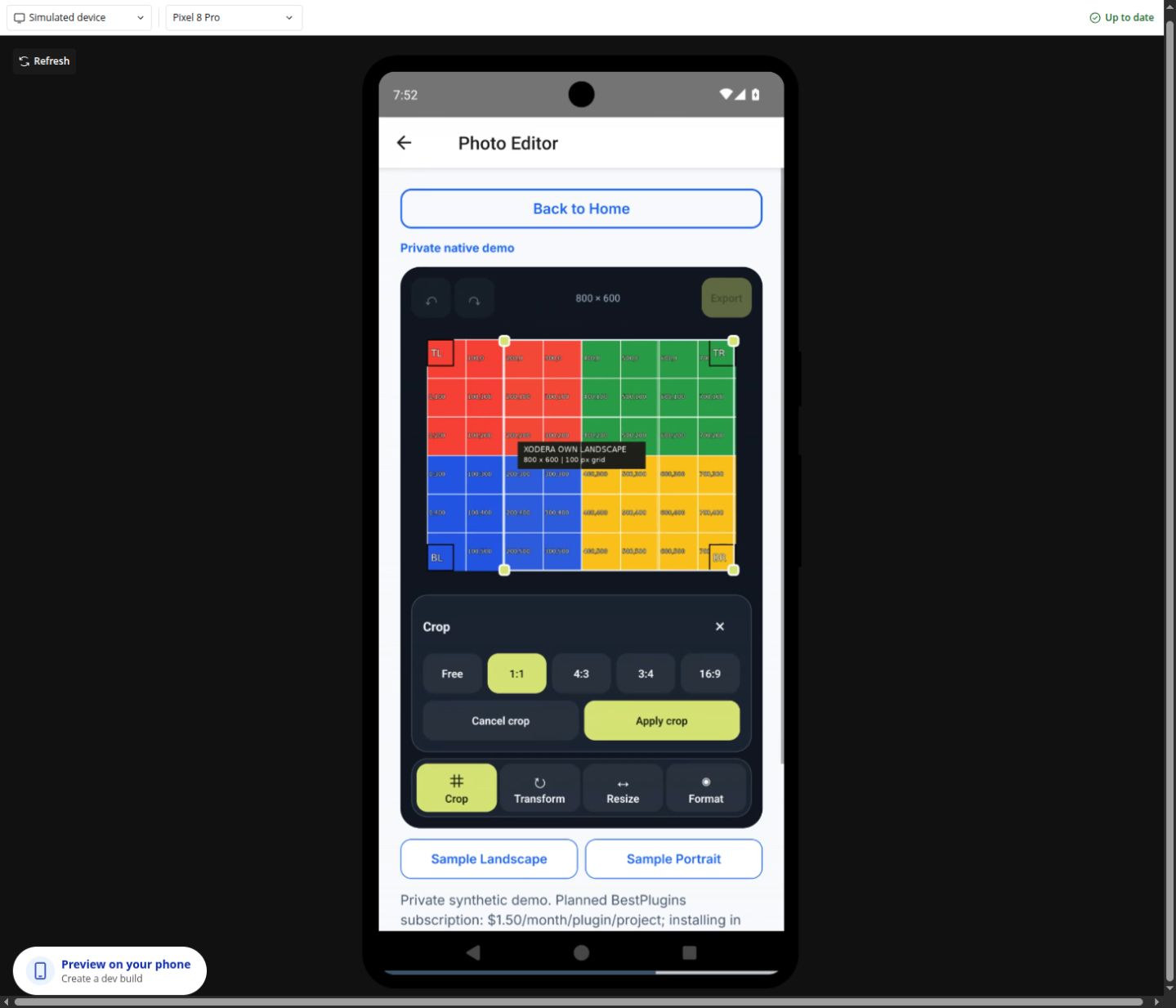
Load an image, crop, rotate, resize and export a local result for your own app workflow.
Shown in Android
Crop overlay, rotation, resize and PNG export result states are shown in Android simulator evidence.
Still to validate
Gesture enhancements and exported pixel/orientation/metadata acceptance remain in validation. A screen state alone does not certify file contents.
Try it in order
Set source_url to a supported image URL or local URI and choose Load source. Set crop_aspect and keep show_controls enabled while learning.
Choose Begin crop, adjust the crop selection and choose Apply crop. Rotate or Resize as needed; use Undo / Redo to inspect the edit history.
Choose export_format (jpeg or png), export_quality and export_max_dimension, then run Export image. Wait for export_completed before reading the output.
Connect a Bubble workflow
On source_loaded, enable your edit controls. On export_completed, read output_uri and output_mime. Use editor_error with error_code and wait while is_busy is yes.
Read the result
output_uri is a local cache file, with output_width, output_height, output_bytes and output_mime. Add your own authorized upload to persist it.
Reset or stop
Cancel crop leaves crop mode. Reset edits returns to the loaded source; Clear session clears the editor session and local output state.
Dynamic input fields11
source_urldocument_contextis_activedisabledshow_controlscrop_aspectexport_formatexport_qualityexport_max_dimensionallow_upscaleui_text_jsonExposed states16
editor_statusis_busyhas_imagehas_changescan_undocan_redoimage_widthimage_heightoutput_urioutput_widthoutput_heightoutput_bytesoutput_mimeerror_codecrop_activecrop_rect_jsonEvents10
source_loadedsource_load_failededit_appliededit_undoneedit_redoneeditor_resetexport_startedexport_completedoperation_cancellededitor_errorElement actions13
Load sourceBegin cropApply crop(origin_x,origin_y,width,height)Cancel cropRotate(degrees)Flip(axis)Resize(width,height)UndoRedoReset editsExport imageCancel operationClear session
Reference names come from the current native element definitions. Availability of an action is separate from acceptance on every device. Expand a reference to see all names.
QR Pass Scanner
Scanner betaQR passes
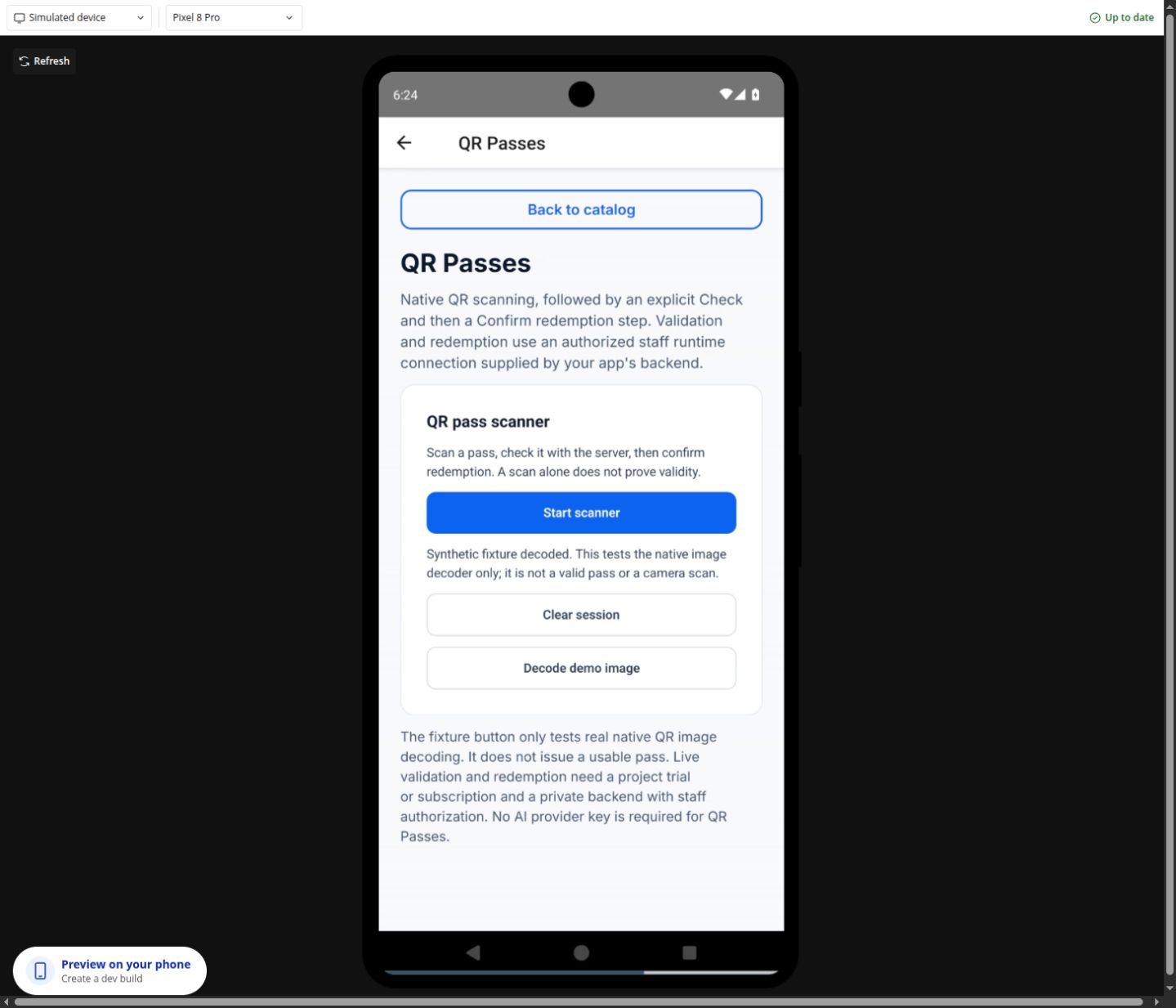
A native scanner and a separate, authorized server workflow for checking and redeeming passes.
Shown in Android
Permission denial/retry, camera mounting/pause and native decoding of the public synthetic QR fixture have Android evidence.
Still to validate
A hosted camera feed can be black. Physical scanning, live staff validation/redemption and native Clear session acceptance remain pending.
Try it in order
For a safe decoder demo, set demo_enabled = yes and choose Decode demo image. fixture_decoded confirms only native image decoding; it never creates or validates a pass.
For live scanning, request camera permission and start the scanner. Bind is_active to view focus so hidden views stop the camera.
Configure the QR plugin server key privately and authorize staff in your backend. When the ready actions are available, scan first, then separately choose Check / Redeem. Live staff acceptance remains pending.
Connect a Bubble workflow
Use fixture_decoded for the synthetic demo and pass_scanned for a scan. Only a successful pass_redeemed receipt is redemption evidence. Staff authorization requires qr_passes:redeem. If redemption_pending fires, preserve the session and use Retry same redemption.
Read the result
Read scanner_status, server_status, scan_source and safe receipt_id after your own successful redemption. Raw QR secrets and runtime capabilities are not exposed as Bubble states.
Reset or stop
Pause stops the camera. Clear session clears local state; a server request already submitted can still finish. There is no offline redemption.
Dynamic input fields4
disabledis_activedemo_enabledui_text_jsonExposed states11
scanner_statusserver_statuspass_idpass_labelreceipt_iderror_codeis_busyis_scanningtorch_enabledscan_sourcepending_redemptionEvents13
scanner_startedscanner_pausedscanner_cancelledpermission_deniedpass_scannedvalidation_startedvalidation_completedredemption_startedpass_redeemedredemption_rejectedredemption_pendingfixture_decodedqr_errorElement actions1
Clear session
Reference names come from the current native element definitions. Availability of an action is separate from acceptance on every device. Expand a reference to see all names.
Document Capture
Capture / AI betaDocuments
Consent-based capture and optional extraction with your own configured AI provider.
Shown in Android
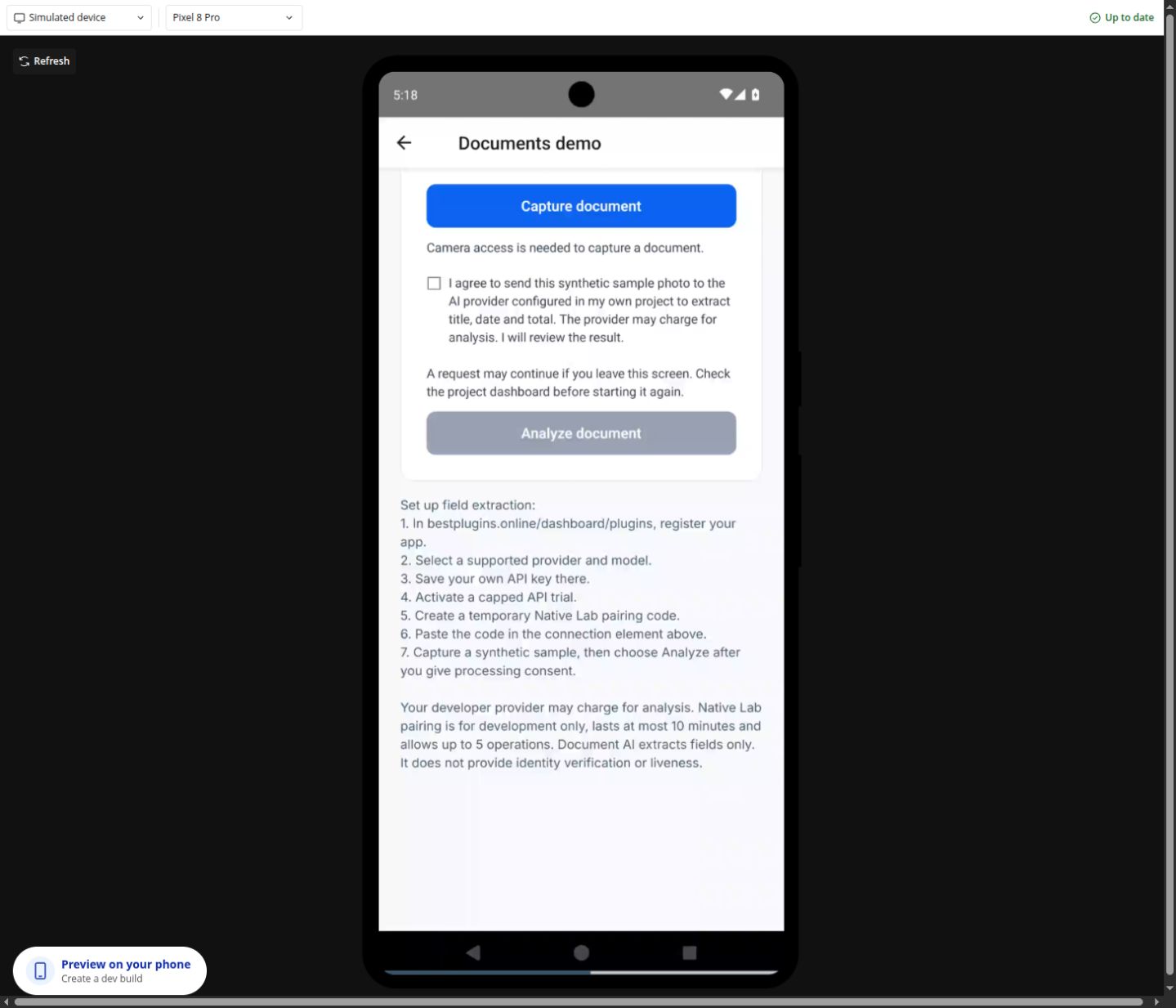
Earlier native capture and current permission-denied handling have hosted Android evidence. The screenshot shows a permission gate.
Still to validate
The current native component’s end-to-end provider extraction remains pending. This is not identity, authenticity or liveness verification.
Try it in order
Set document_side, button_label and consent_text. Use a synthetic receipt or sample document, give capture consent, and press Capture document.
For AI in this private Lab, configure your provider and temporary pairing below. Set fields_json. Your app’s planned one-key setup uses the private Document AI plugin key in its protected backend.
Read the separate processing consent, then press Analyze document. Use Check result for a known pending operation, and review the returned fields.
Connect a Bubble workflow
Use capture_succeeded to read local_uri. Handle permission_denied with a retry path. On analysis_ready, show analysis_fields_json for review; analysis_pending means check the same operation.
Read the result
local_uri is a device cache image. analysis_fields_json is extraction output and review_required remains true. Provider keys never belong in the native element.
Reset or stop
Use a new explicit capture to start a new document. Revoke the temporary pairing when done; changing authenticated runtime context clears the previous private work.
Dynamic input fields8
document_sidebutton_labelconsent_textdisabledfields_jsonprocessing_consent_textanalyze_button_labelcheck_button_labelExposed states14
capture_statuslocal_urimime_typedocument_sideimage_widthimage_heighterror_codeis_capturinganalysis_statusanalysis_operation_idanalysis_fields_jsonanalysis_error_codereview_requiredis_analyzingEvents9
capture_startedcapture_succeededcapture_cancelledpermission_deniedcapture_erroranalysis_startedanalysis_readyanalysis_pendinganalysis_errorElement actions0
This element uses its native controls and exposed events; no additional workflow action is declared.
Reference names come from the current native element definitions. Availability of an action is separate from acceptance on every device. Expand a reference to see all names.
DATA / WORKFLOWS01 02 03
Dynamic values, without guesswork
Change a media source
Set Xodera Audio Player Native’s source_url or Native Video Player’s source_url to a Bubble file URL or supported local URI. Changing the dynamic value replaces the source; start playback explicitly. For a workflow Seek, audio uses seconds and video uses position_seconds.
Use a photo result
Set Photo Editor’s source_url, choose export_format and export_quality, then run Export image. On export_completed, read output_uri, output_mime and dimensions. The URI points to the device cache; it is not a public Bubble upload URL.
Use extraction in your app
Set Document Capture’s fields_json to ["title","date","total"]. Configure the Document AI plugin key in your protected backend and use Analyze document when the ready action is available. In this private Lab, use the separate pairing flow below. On analysis_ready, review analysis_fields_json and keep review_required visible.
Local files stay local until you choose otherwise
Photo output_uri and Document Capture local_uri reference temporary device files. A preview can disappear when the session or cache is cleared. To save a result, build an authorized upload or storage workflow in your own app. The demo does not automatically publish, upload, save to the gallery or create an edited video file.
APPS / WORKFLOWS
What you can build
Concrete examples connect dynamic inputs, plugin actions and results in your app. Availability follows each product’s current release status.
What you can build
Xodera Audio Player Native
Voice notes inside a support conversationA plain file link sends users away from the conversation and makes long replies hard to review.See the workflow
- Dynamic input
source_url = Selected Message’s audio URL;title = Selected Message’s sender label;subtitle = Selected Message’s timestamp.- Business workflow
- Place the player in the selected-message detail. Let the user Play/Pause, Seek to a useful point and Set speed. Bind
is_activeto the open conversation. - Result
- Use
is_playing,current_timeanddurationto show progress. Keep the Message ID in your app so a late event cannot update a different conversation. - Failure and recovery
- On
player_error, showerror_codeand offer Reload source; preserve the message and never mark it listened to after an error. - Scope
- Playback only. It does not send messages, transcribe or create waveform data.
Resume a language lesson at the saved positionLearners need to replay a difficult passage instead of restarting the whole lesson.See the workflow
- Dynamic input
source_url = Current Lesson’s audio URL;title = Current Lesson’s name; the last position belongs to that learner and lesson in your database.- Business workflow
- After
readyfor the current lesson, Seek to the saved seconds and wait for the user to Play. Use Set speed for slower listening. Save progress with your own app workflow. - Result
- Read
current_timeandduration. Onplayback_ended, your app may record a listening milestone for the current Lesson. - Failure and recovery
- If the source changed, discard the old position until that lesson is loaded. Do not treat listening completion as proof that the learner understood or passed a test.
- Scope
- Progress storage is your Bubble workflow. Playback ends and resumes only within the accepted foreground runtime; no background or lock-screen promise.
Review an audio attachment with timestamped commentsEditors or trainers need to jump from a comment to the relevant moment in a recording.See the workflow
- Dynamic input
source_url = Selected Review’s recording URL; each app-owned Comment stores its own seconds value; optionalwaveform_peaks_jsoncontains real peaks for that same recording.- Business workflow
- Click a Comment → Seek to its seconds → Play. On source change, replace or clear the peaks and bind the selected Review again.
- Result
- Display
current_timebeside your comment composer.waveform_availabletells your UI whether actual supplied peaks are available. - Failure and recovery
- Clamp or reject stale timestamps against the current duration in your app. When no real peaks exist, show the ordinary progress control rather than invented audio analysis.
- Scope
- Comment storage, transcription, waveform generation and audio editing are outside this player.
Playback only; waveform peaks must be supplied for the same file. Native device verification remains pending.
What you can build
Xodera Audio Recorder Native
Listen before sending a non-confidential voice messageUsers need a chance to hear and replace a recording before it becomes an attachment.See the workflow
- Dynamic input
title = the app’s conversation label; setmax_duration_secondsandmax_upload_bytesto your message policy.- Business workflow
- Start recording → Stop recording → wait for
recording_ready→ Play preview. Offer Seek preview and Set preview speed. Only an explicit Send invokes Upload to Bubble on the accepted own-app upload endpoint. - Result
- Only on
upload_succeeded, create your Message and set its audio field touploaded_file. The message is not created by the recorder itself. - Failure and recovery
- On microphone denial show
permission_status; on upload failure keep the local recording. Reconcile an unknown upload before retrying so Send cannot create duplicate attachments/messages. - Scope
- The current typed Bubble upload is public-only. Do not use this scenario for confidential support, medical or identity recordings. No automatic transcription or encrypted chat is included.
Pronunciation practice without an immediate uploadLearners want to compare their own spoken response with a lesson before deciding to submit it.See the workflow
- Dynamic input
title = Current Exercise’s prompt;max_duration_seconds = the exercise limit; an exercise answer remains an app-owned record.- Business workflow
- Record → Stop → Play preview. Let the learner seek, slow the preview or cancel and record another attempt. Save locally only when they choose to keep the draft.
- Result
duration,local_uri,mime_typeanddraft_iddescribe the attempt. Your app decides whether it remains local or is later submitted through an appropriate accepted transport.- Failure and recovery
- On
preview_error, preserve the draft and showerror_code. Do not turn a preview or saved draft into a submitted Answer until the app’s submission workflow succeeds. - Scope
- No pronunciation scoring, transcription, teacher notification or automatic submission. Process-restart restoration still needs native acceptance.
Keep a local voice draft and make Send explicitA field worker can be interrupted before finishing a note and should not have to upload it just to keep it.See the workflow
- Dynamic input
saved_draft_id = the draft ID stored by your app for this device and account;title = the selected non-sensitive task label.- Business workflow
- Start/Stop recording → Save locally. Store the returned
draft_idin your own device/account-scoped state. Use Restore local draft for that same ID, then Play preview before deciding whether to upload. - Result
- On
local_savedorlocal_restored, inspectis_saved_locally,local_uriandduration. Only delete the saved draft after explicit user choice or after a separately confirmed retention policy. - Failure and recovery
- If restore fails, show
error_codeand keep the ID for diagnosis; do not report an empty or different recording as restored. Never auto-upload on reconnect. - Scope
- A draft ID is not a cloud URL and does not move between devices. Account isolation and close/reopen durability need actual native acceptance before this scenario is marketed as available.
The current typed Bubble upload is public-only. Audible native playback and close/reopen draft durability still require acceptance.

What you can build
Xodera B2 Files Native
Store a job attachment in the developer’s own private bucketA Bubble Job needs a durable storage reference without treating an expiring download URL as the file identity.See the workflow
- Dynamic input
bucket_binding_id = an allowed binding to your own private bucket; dynamiclocal_uri,display_name,mime_typeandexpected_sizedescribe the selected local file.- Business workflow
- Candidate transfer flow: Check local source → Upload file → wait for
upload_verified. Your workflow then storesasset_refand metadata on the owned Job record. - Result
- Use
asset_ref,size_bytes,mime_typeandupload_status. Later, Resolve private read can provide a temporary URL for an authorized use. - Failure and recovery
- If database save fails after
upload_verified, retry the DB update with the same asset reference rather than another PUT. Reconcileupload_pendingusing Check or recover upload status and the same upload ID. - Scope
- The own-account transfer source is implemented but its automatic one-key bridge, actual native installation and B2-byte acceptance remain pending. A private bucket does not automatically implement your app’s Job permissions.
Build an owned attachment gallery with durable file recordsA file gallery needs names, types and pagination as well as a way to open the selected asset later.See the workflow
- Dynamic input
- Your app’s File record stores an accepted
asset_ref, display name, MIME and owner/job relation after a verified upload; do not use a local URI as its cloud identity. - Business workflow
- Candidate transfer source can List application files and Load more application files. For Bubble repeating lists, use separately accepted typed server reads or your own synchronized File Things; selecting a record supplies its
asset_refto Get asset metadata or Download accepted version. - Result
has_moreandnext_cursorbelong to the current query. A completed download returnslocal_output_uri; it is a device-local copy, not a permanent public link.- Failure and recovery
- Reset pagination after binding/account/query changes. On
transfer_error, preserve the existing File Thing and showerror_code; do not silently replace it with another provider version. - Scope
files_jsonis diagnostic, not proof of typed Bubble RG integration. No live bucket/native/gallery acceptance, cloud sync or resumable/background download is claimed.
Make publication and exact-version deletion deliberateStaff should not accidentally expose a private attachment or delete every version when replacing an image.See the workflow
- Dynamic input
asset_ref = the selected accepted version; bucket binding and the app’s server-side ownership/policy must allow the requested operation.- Business workflow
- Show the current visibility, ask for explicit confirmation, then Change public sharing. For removal, call Delete accepted version with confirmation; keep app metadata until the confirmed outcome is known.
- Result
- After
share_changed, consumevisibilityandpublic_urlonly when public sharing was explicitly authorized. Afterdelete_completed, update the owned File record;delete_pendingis not final deletion. - Failure and recovery
- Reconcile an uncertain operation instead of assuming success. Previously issued provider read URLs may remain valid until expiry; removing a DB row or disabling sharing does not recall bytes already downloaded.
- Scope
- No bucket-policy mutation, purge-all or single-use/revocable URL guarantee. Public-bucket bytes may already be exposed during upload; use a private bucket when secrecy is required. All scenarios remain draft until provider/native acceptance.
Your own buckets and restricted credentials. The automatic one-key native bridge, actual plugin installation and provider-byte acceptance are pending.
What you can build
Xodera Documents AI Native
Prefill an expense draft from a receipt photoRepeated typing of merchant, date and total slows expense entry; extracted fields can be a reviewable draft.See the workflow
- Dynamic input
fields_json = ["merchant","date","total","currency"]; the user captures a receipt image and separately consents to processing. Use only synthetic receipts during integration acceptance.- Business workflow
- Candidate business flow:
analysis_requested→ Analyze Captured Document using the bounded exported bytes/MIME/field names/consent/request ID → show returned fields in your editable Expense form. - Result
- The action returns
status,operation_id,fields_jsonandreview_required. Your user corrects/approves the fields before your workflow creates an Expense. - Failure and recovery
- On an uncertain result, Read Analysis with the same
operation_id; do not issue another analysis automatically. Consent withdrawal clears retained capture/export; never persist raw base64 in a public Thing or logs. - Scope
- This is a source-reviewed candidate: native bytes→authenticated backend→real provider acceptance is pending. No accounting approval, guaranteed numeric accuracy, PDF processing or authenticity verdict.
Read a delivery-note reference for a staff review formA warehouse user should be able to review a suggested reference/date instead of typing it from a photographed paper slip.See the workflow
- Dynamic input
fields_json = ["delivery_reference","supplier","delivery_date"]; capture the relevant side of a synthetic delivery note during QA.- Business workflow
- After separate capture/processing consent, Analyze Captured Document proposes the selected fields. Show the photograph beside editable fields and ask staff to confirm the matching Delivery record.
- Result
- Keep the returned
operation_idfor reconciliation andfields_jsonas a proposal. Your workflow performs the actual Delivery lookup/update only after staff review. - Failure and recovery
- Missing, ambiguous or incorrect fields require manual correction. A provider error leaves the original Delivery unchanged; Read Analysis reconciles an uncertain operation.
- Scope
- No automatic inventory movement, signature validation, proof of delivery or arbitrary model guarantee. The one-key business transport is not yet native/provider accepted.
Suggest an equipment serial number from a label photoA maintenance form can offer a reviewable model/serial suggestion when an asset label is awkward to type.See the workflow
- Dynamic input
fields_json = ["manufacturer","model","serial_number"]; capture a synthetic equipment-label image; configure an available DeepInfra or OpenAI preset and your own provider key privately in BestPlugins.- Business workflow
- The candidate Analyze Captured Document business action returns proposed strings. Display them next to the photo; let the user correct them before your Asset lookup or maintenance workflow.
- Result
- Use returned
fields_json,review_requiredandoperation_id. Treat identifiers as text so your app preserves leading zeros. - Failure and recovery
- If the image is unreadable or the model proposes a wrong string, allow manual entry. Read the same operation after an uncertain response rather than charging another inference.
- Scope
- Extraction does not prove ownership, equipment authenticity or identity. Model presets are curated; there is no arbitrary endpoint/model input or accepted native extraction claim.
Field suggestions require human review. Authenticated native byte transport and a positive real-provider result are pending; no identity verification.
What you can build
Xodera Offline Files Native
Stage several local attachments before submitting a reportA form needs to show which files were picked and let the user keep a managed copy before any cloud submission.See the workflow
- Dynamic input
accepted_mime_types_json = your allowed MIME list;multiple = yes; setmax_files,max_file_bytesand an account/reportdocument_context.- Business workflow
- Pick files → inspect the selected names/sizes → Save selection locally. Your form keeps the resulting file IDs until its separate Submit workflow uploads approved files.
- Result
- Use
selection_count,file_names,file_sizesandsaved_file_idsto render the review list. A saved managed copy preserves the caller’s original. - Failure and recovery
- A cancelled picker is not a submitted report. On
files_error, keep already accepted local IDs and showerror_code; never create a cloud attachment from a local URI alone. - Scope
- No automatic cloud sync or upload. MIME labels are filters, not malware or content validation. Native picker/copy behavior still needs target-OS acceptance.
Keep a photo-editor or recorder output for later useA generated local file may live in a temporary location; the app needs an explicit managed copy.See the workflow
- Dynamic input
source_uri = the local output of a separately accepted editor/recorder; bind its realdisplay_nameandmime_type; use the same owner’sdocument_context.- Business workflow
- Load local source → inspect metadata → Save selection locally. Store the returned file ID only in the matching device/context, then Restore saved file by that exact ID when needed.
- Result
- Consume
file_id,local_uri,size_bytesandis_saved_locally; usefile_restoredto distinguish a completed restore from merely requesting one. - Failure and recovery
- Reject a remote HTTP URL as a local source. If a source vanished or restoration fails, show
error_codeand preserve the original app record for recovery. - Scope
- No server can read this URI directly. Files does not prove another plugin’s export correctness, cloud durability or process-restart durability.
Let a user share an app-generated local receipt or exportThe app should hand a selected local file to the device share sheet rather than inventing a public URL.See the workflow
- Dynamic input
selected_file_id = the exact managed copy chosen from your app’s saved-file list; its name and MIME describe the real local file.- Business workflow
- List saved files → Restore saved file → Share selected file after the user taps Share. Keep the saved copy until they explicitly choose Delete saved copy.
- Result
- Use
share_statusandshare_sheet_closedto update the UI after the sheet closes. Retain the file ID for another deliberate share. - Failure and recovery
- A closed share sheet is not proof that an email/message was delivered. Handle cancellation and
files_errorwithout reporting success to the recipient. - Scope
- Sharing goes through the OS. Files does not create a remote download URL or guarantee that a receiving app accepted the bytes.
Local files and OS sharing only; no automatic cloud sync. Native picker, copy, restore and receiving-app acceptance are pending.
What you can build
Xodera Photo Editor Native
Consistent profile avatars before uploadUsers should choose which part of their photo appears in a square profile image instead of accepting an arbitrary crop.See the workflow
- Dynamic input
source_url = selected profile image;crop_aspect = "1:1";document_context = an opaque account-specific namespace.- Business workflow
- Wait for
source_loaded; Begin crop → Apply crop, with Rotate or Undo as needed. On explicit Save, Export image. - Result
- Only on
export_completed, useoutput_uri,output_width,output_heightandoutput_mimeas inputs to your accepted upload workflow. Save its durable reference to the Profile afterward. - Failure and recovery
- If the user cancels or
editor_errorfires, keep the old avatar. Clear the session on account change so another user cannot see the draft. - Scope
- Export is local. Cloud upload and database updates are separate business actions; exact native gesture/export acceptance is still required.
Prepare consistent marketplace or catalogue photosDifferent framing and oversized images make a catalogue uneven and increase upload size.See the workflow
- Dynamic input
source_url = selected item photo;crop_aspect = the app’s chosen ratio;export_max_dimension,export_formatandexport_qualitycome from your upload policy.- Business workflow
- Crop the relevant area, optionally Resize, then Export image after the user confirms. Keep the original file/reference separately.
- Result
- Check
output_width,output_height,output_bytesandoutput_mimebefore your transport uploads the result. Store the resulting image reference on the Item. - Failure and recovery
- If export fails or the result violates your upload policy, show
error_codeand let the user revise it. Do not overwrite the previous Item image before upload confirmation. - Scope
- Resizing/quality settings do not promise an exact byte size or universal compression ratio. No background removal, filters or retouching is included.
Create a focused image copy for a field reportA technician may need a close-up of one damaged part while preserving the original report image.See the workflow
- Dynamic input
source_url = Current Report Photo’s source;document_context = opaque report/account namespace; crop ratio can remain unconstrained.- Business workflow
- Begin crop → Apply crop, then use Undo/Redo to compare edits. Export image creates the candidate copy; your app asks whether to attach that copy to the Report.
- Result
- Use
has_changes,can_undo,can_redoandoutput_uri. Store original and edited references in separate app fields after an accepted upload. - Failure and recovery
- Cancel crop or Reset edits restores the editing path; cancellation must leave the original Report attachment unchanged.
- Scope
- This is an edited copy, not forensic evidence preservation, annotation markup or authenticity verification. Do not claim EXIF retention without its own accepted test.
Export creates a local file. Upload and database persistence are separate business actions; native gestures/output still require acceptance.
What you can build
Xodera QR Passes Native
One-use admission for a same-day eventA screenshot of an ordinary QR value can otherwise be reused at more than one entrance.See the workflow
- Dynamic input
- Your app stores an Admission record and a stable issue
request_id; use curatedlabel=eventand attl_secondswithin the 1–86400-second contract. - Business workflow
- An authorized issuer runs Issue QR pass and privately delivers the returned QR. Staff scan → Check QR pass → confirm only if
ok=yesandstatus=available→ Confirm QR redemption with a stored stable request ID. - Result
- Only
status=redeemedplusreceipt_idauthorizes your app’s admission receipt. Store the pass/receipt reference on the Admission; do not expose bearer tokens to analytics. - Failure and recovery
- For
outcome_unknown, recover the same request with identical user/environment/pass; never generate a new confirmation ID. Handle expired, revoked and already-used states as distinct outcomes. - Scope
- No identity proof, offline redemption or permanent event ticketing. The current camera/scan→server business flow is not native-accepted; it is a release scenario, not an available demo.
Redeem a short-lived benefit once at a partner counterA partner needs a server-confirmed used/unused result instead of trusting a QR image or a screen animation.See the workflow
- Dynamic input
label=coupon; the app’s Benefit record defines eligibility and a short validity window before an authorized issue action.- Business workflow
- Issue a pass only after your app’s eligibility check. At the counter, Check QR pass shows availability without consuming it. After the staff member confirms delivery of the benefit, run Confirm QR redemption.
- Result
- Your Benefit record may store
receipt_idand the confirmed redemption time afterstatus=redeemed. The plugin manages pass state; your app manages the benefit and customer relationship. - Failure and recovery
- If a benefit is cancelled before use, the same authorized issuer can Revoke QR pass using its
pass_id. Do not announce a refund or successful redemption fromok=yesalone. - Scope
- No payment, POS settlement, discount calculation or person matching. A pass expires within the supported maximum of 24 hours; it is not a renewable membership card.
Confirm a same-day equipment or order pickupA staff workflow needs to distinguish scanning a collection reference from actually handing over an item.See the workflow
- Dynamic input
- Your app’s owned Collection record keeps authorization, the intended item and separate stable issue/redemption request IDs; use a short-lived
label=accesspass. - Business workflow
- After your app authorizes collection, Issue QR pass. Staff scan and Check, inspect the matching Collection in your app, then explicitly confirm the handover and Confirm QR redemption.
- Result
- Only after a confirmed
redeemedreceipt should your workflow set the Collection to handed over. Keepreceipt_idas the link to the pass outcome. - Failure and recovery
- A repeated scan may return already_used; display the existing app record instead of handing over another item. Recover an uncertain confirmation with the same ID and inputs.
- Scope
- The QR is a bearer capability, not proof of the holder’s identity or a full inventory system. Physical handover and app-record consistency remain your business process.
Own one-use passes, valid for at most 24 hours. Trusted native scan → Check → explicit Confirm acceptance is pending.
What you can build
Xodera Video Player Native
Chapter links in a training appA learner needs to replay one step of a demonstration without navigating to an external player.See the workflow
- Dynamic input
source_url = Current Lesson’s video URL;poster_url = Current Lesson’s cover; each Chapter stores an app-owned start time.- Business workflow
- Chapter click → if changing source, wait for
source_loaded→ Seek toposition_seconds→ Play. Use Set playback rate for a detailed demonstration and Enter fullscreen when requested. - Result
- Read
position_seconds,duration_secondsandis_fullscreen; your workflow stores lesson progress only for the current source. - Failure and recovery
- On
player_error, showerror_code, preserve progress and offer Reload video. A completion event is not proof that a lesson or safety assessment was passed. - Scope
- Publish only file/codec/OS combinations actually accepted. This is a player, not a video editor or DRM learning platform.
Video demonstrations on marketplace listingsA product image alone cannot explain how an item works, but an off-site video breaks the purchase flow.See the workflow
- Dynamic input
source_url = Selected Listing’s demonstration URL;poster_url = its thumbnail;muted = yesfor an intentionally silent first preview.- Business workflow
- Open the selected Listing → bind its video → Play after a user action. Offer Set muted for sound and Enter fullscreen for closer inspection. Bind
is_activeto the visible detail. - Result
- Use
has_source,is_bufferingandstatusto distinguish an absent video, loading and ready media. - Failure and recovery
- On source replacement, stop applying old progress and track selections. Show a thumbnail fallback when the selected file is unsupported.
- Scope
- This does not generate a video, accept every format or guarantee autoplay. Native portrait/landscape and fullscreen behavior remain release-specific acceptance gates.
Choose available language tracks in a supported streamA multilingual app needs to offer the tracks that a particular source actually contains.See the workflow
- Dynamic input
source_url = Selected Programme’s accepted stream URL; the source itself must provide compatible audio/subtitle tracks.- Business workflow
- On
tracks_changed, read the currentaudio_tracks_jsonandsubtitle_tracks_json; build choices in your app and call Select audio track or Select subtitle track with the current index. - Result
- Use
selected_audio_index,selected_subtitle_indexandsource_generationto associate the choice with this source. - Failure and recovery
- Rebuild the choices after every source change. If a track is absent or unsupported, keep the default track and show that availability honestly.
- Scope
- The player does not translate, generate captions or turn an arbitrary file into a multitrack stream. HLS/DASH/track support must have its own OS/source evidence.
File, stream and track support depends on the accepted source/OS combination. No editing, DRM or background playback.
DOCUMENT AI / BYOK
Connect Document AI with your own provider key
Provider setup lives in the BestPlugins dashboard. A temporary Native Lab pairing lets you try the configured project without putting a provider key in the demo. Use synthetic documents and review every extraction.
Configure my appbestplugins.online/dashboard/plugins
Open Configure my app, sign in, choose New app project, enter your Bubble app ID or editor link, and open the project.
Select Document AI and Development. Choose a supported provider and model offered by the dashboard, save your own key, and select Use provider if shown. Provider keys and the private Document AI plugin key stay in BestPlugins or your protected backend.
If eligible, choose Start API trial. The Document AI / QR API trial lasts seven days without an operation cap and covers development and production. Provider fees apply separately; this does not activate a paid native release.
Under Connect Native Lab, read the temporary-session consent and choose Create pairing code. Enter the one-time code in Native Lab. It expires after ten minutes without a separate operation cap; paid access also has no subscription operation-count cap. Never put this code in a URL.
Pairing does not process a document. Capture or select a synthetic sample, approve the separate provider-processing consent, then choose Analyze. If an operation is pending, use Check result; do not submit it repeatedly.
Review the extracted fields and revoke the pairing in BestPlugins when finished. QR staff redemption uses a separately authorized protected-backend capability; this Document AI pairing does not grant it.
BETA / PRICING
Public beta pricing
Per plugin, per Bubble app project. Development and production are included for that project. Your own AI provider usage is billed separately by your provider.
7-day card trial, then USD 1.50 / month
Free installation in Bubble
Activate Audio Player, Video Player, Photo Editor, Audio Recorder or Files Kit from its project in the dashboard. Review the card trial and recurring price before confirming. Other plugins are not open for purchase; private demos have separate limits.STATUS / LIMITS
What this beta does — and what remains
- Audio and video playback controls, photo editing/export states and synthetic QR decoding have Android simulator evidence. This does not certify every source format, exported file, device or workflow.
- Gesture enhancements are in validation. Physical Android, iPhone, camera capture, audio routing and accessibility need their own acceptance.
- Video settings change playback only. There is no video editing export, recording, liveness check, face match or identity verification claim.
- Document capture and optional AI extraction require separate consent. Extraction can be wrong and always requires human review. The full current native AI flow remains under validation.
- The public guide is available now. An anonymous interactive native simulator is pending a verified public build and public access check.
Keep building
Browse all plugin categoriesNative mobile categoryConfigure my app · sign-in requiredCustom integration helpBubble mobile preview documentation
Open developer previewDeveloper preview only: Bubble requires you to sign in as an app collaborator. This guide and its screenshots need no account. Anonymous interactive simulator access awaits a verified public build.