Xodera Plugins · Bubble Native
Xodera Documents AI Native
Turn a receipt or delivery photo into a draft form. Let AI suggest the date, total and other requested fields, then let a person review them before saving.
Public beta guides · Haptics instructions are in its Bubble listing
Public beta offer: free Bubble install · 7-day card trial, then US$1.50/month per plugin/project.
Documentation reviewed 6 November 2026
Practical examples
Prefill an expense draft from a receipt photo
Repeated typing of merchant, date and total slows expense entry; extracted fields can be a reviewable draft.
`fields_json = ["merchant","date","total","currency"]`; the user captures a receipt image and separately consents to processing. Use only sample receipts while testing.
Planned: `analysis_requested` → Analyze Captured Document using the bounded exported bytes/MIME/field names/consent/request ID → show returned fields in your editable Expense form.
The action returns `status`, `operation_id`, `fields_json` and `review_required`. Your user corrects/approves the fields before your workflow creates an Expense.
On an uncertain result, Read Analysis with the same `operation_id`; do not issue another analysis automatically. Consent withdrawal clears retained capture/export; never persist raw base64 in a public Thing or logs.
Planned. A person must review every suggested value before saving.
Read a delivery-note reference for a staff review form
A warehouse user should be able to review a suggested reference/date instead of typing it from a photographed paper slip.
`fields_json = ["delivery_reference","supplier","delivery_date"]`; capture the relevant side of a sample delivery note while testing.
After separate capture/processing consent, Analyze Captured Document proposes the selected fields. Show the photograph beside editable fields and ask staff to confirm the matching Delivery record.
Keep the returned `operation_id` to check the result again and `fields_json` as a proposal. Your workflow performs the actual Delivery lookup/update only after staff review.
Missing, ambiguous or incorrect fields require manual correction. A provider error leaves the original Delivery unchanged; Read Analysis check the result ofs an uncertain operation.
Planned. A person must review every suggested value before saving.
Suggest an equipment serial number from a label photo
A maintenance form can offer a reviewable model/serial suggestion when an asset label is awkward to type.
`fields_json = ["manufacturer","model","serial_number"]`; capture a sample equipment-label image; choose your AI provider in the project settings.
The planned Analyze Captured Document action returns proposed strings. Display them next to the photo; let the user correct them before your Asset lookup or maintenance workflow.
Use returned `fields_json`, `review_required` and `operation_id`. Treat identifiers as text so your app preserves leading zeros.
If the image is unreadable or the model proposes a wrong string, allow manual entry. Read the same operation after an uncertain response rather than charging another inference.
Planned. A person must review every suggested value before saving.
What works now
Private beta. Photo capture is available for testing. Extracting fields from the photo is planned and is not ready to use in your app yet.
Build the workflow
Planned
Planned workflow. Not available in the current beta yet.
These examples use app records such as Lesson, Message and Order. Replace them with your own data types and element names. Example media addresses must be replaced with your own files.
Planned: choose the fields your form needs, for example fields_json=["title","date","total"]. Enable enable_analysis_export and set analysis_context to the selected account or record. These analysis settings are not available in the current capture version.
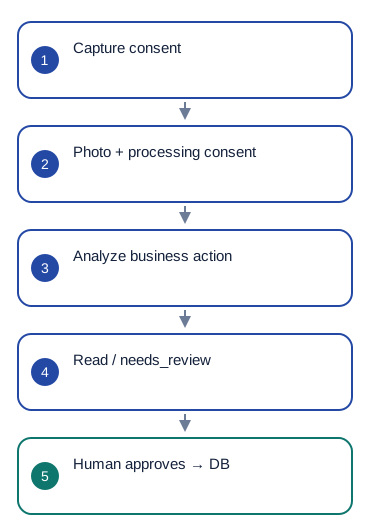
Let the user take a photo and agree separately to processing. On analysis_requested, run Analyze Captured Document using this element's analysis_image_base64, analysis_mime_type, analysis_fields_json and analysis_consent. Use analysis_request_id as idempotency_key.
Save the returned operation_id, request_id and status. If status is processing, use Read Analysis with that operation_id to fetch the result later.
Show the returned fields_json in an editable review form. Save approved values only after the user checks them and presses Confirm. Keep the original record until that confirmation.
Configure once
Create or choose your Bubble app project in BestPlugins → Dashboard → Plugins. Choose Xodera Documents AI Native, copy its key, then open Bubble → Plugins → Xodera Documents AI Native and paste it into project_api_key. Save once; then use the actions below. Each plugin in each project has its own key.
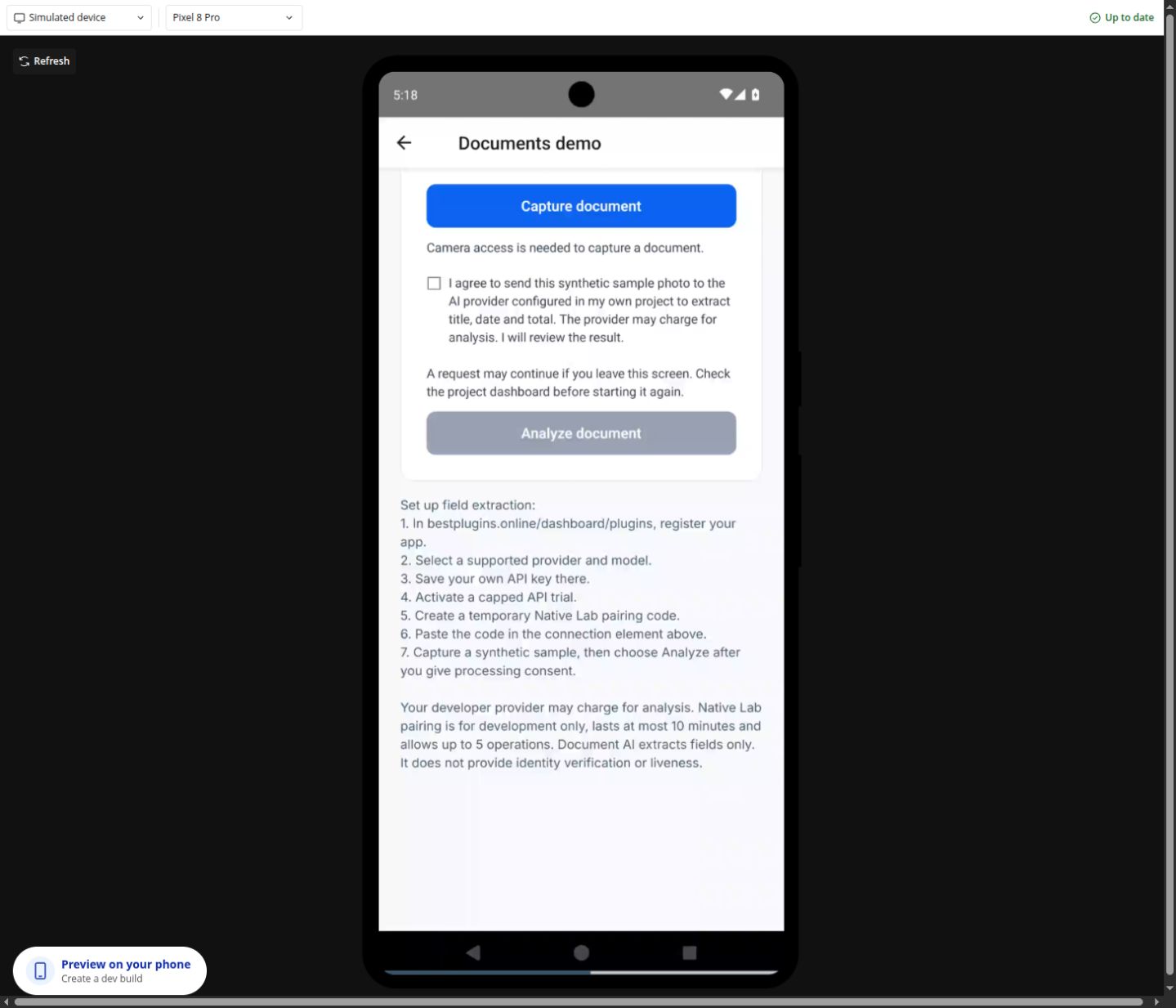
Ask for camera permission and explain why the photo is needed. Processing needs a separate user agreement. Choose your AI provider in the project settings; its usage is billed by that provider.
Configure once
- Create or choose your Bubble app project at BestPlugins → Dashboard → Plugins.
- Choose this plugin and copy its project key.
- Open Bubble → Plugins → Xodera Documents AI Native; paste the key into project_api_key and save.
- Add the element, choose your app data and build the workflow below.
- Private beta access only for now. Public installation and paid activation are not open yet.
Installation and subscription
For Audio Player, Video Player, Photo Editor, Audio Recorder, Files Kit and Haptics: free Bubble installation, a 7-day trial with a card, then US$1.50 per month per plugin and app project. Development and production are included, with no operation cap. File-size and feature limits still apply. Review billing and cancellation before confirming. Other plugins remain unavailable for purchase.
Save the result in your app
Example ExpenseDraft: owner, operation_id, request_id, status and proposed_fields_json. After review, save the approved date, total and other fields, plus reviewed_by and reviewed_at. Map only fields your form requested. Do not put the full image content into logs or ordinary text records.
Failure, cancel and recovery
If the result is delayed, keep the same request and use Read Analysis for the known operation_id. Do not take a new photo or create a new request automatically. If the user withdraws consent, clear the photo and stop offering the result; this cannot recall a copy already sent or saved.
Capabilities and limits
Planned image input: PNG, JPEG or WebP, up to 5 MiB; request 1–32 distinct field names. Always review extracted values. This is not identity verification, a check of document authenticity or a medical decision tool. AI-provider charges are separate.
Settings, actions and results
Use these names in Bubble. Planned features are marked separately.
Available beta settings
Element settings
document_side · textbutton_label · textconsent_text · textdisabled · yes/nofields_json · textprocessing_consent_text · textanalyze_button_label · textcheck_button_label · textlanguage · textui_text_json · textStates
capture_status · textlocal_uri · textmime_type · textdocument_side · textimage_width · numberimage_height · numbererror_code · textis_capturing · yes/noanalysis_status · textanalysis_operation_id · textanalysis_fields_json · textanalysis_error_code · textreview_required · yes/nois_analyzing · yes/noEvents
capture_startedcapture_succeededcapture_cancelledpermission_deniedcapture_erroranalysis_startedanalysis_readyanalysis_pendinganalysis_errorActions and their inputs
Element settings · 12
Planned workflow. Not available in the current beta yet.
document_sidetext · Default: "front"- Example value
front - Example Bubble expression
Capture Side Dropdown's value - Use the current business record’s value; validate it against the limits below.
button_labeltext · Default: ""- Example value
"" - Example Bubble expression
App Texts' capture_label - Visible app text; empty uses built-in localized copy where supported. No credentials.
consent_texttext · Default: ""- Example value
I agree to capture this non-sensitive receipt. - Example Bubble expression
App Texts' capture_consent - Explain the specific capture/processing purpose and recipient. Consent withdrawal clears retained bytes, not prior app copies.
disabledyes/no · Default: false- Example value
no - Example Bubble expression
GuideHost's is_busy (your yes/no custom state) - Disable the element while your app is busy or this action is unavailable.
processing_consent_texttext · Default: ""- Example value
I agree to send this image to the configured AI provider for draft fields. - Example Bubble expression
App Texts' processing_consent - Explain the specific capture/processing purpose and recipient. Consent withdrawal clears retained bytes, not prior app copies.
analyze_button_labeltext · Default: ""- Example value
"" - Example Bubble expression
App Texts' analyze_label - Visible app text; empty uses built-in localized copy where supported. No credentials.
languagetext · Default: "auto"- Example value
uk - Example Bubble expression
Current User's preferred_language - Set language=auto to follow a supported device or browser language. Enter a supported language code to choose it explicitly.
ui_text_jsontext · Default: ""- Example value
{} - Example Bubble expression
App Settings' player_labels_json (supported keys only) - Optional JSON with supported button labels. Leave empty to use the built-in text.
enable_analysis_exportyes/no · Default: false- Example value
yes - Example Bubble expression
App Settings' enable_reviewed_extraction - Planned: allow the analysis action to use the photo after both user agreements. Off by default.
analysis_contexttext · Default: ""- Example value
<current-user-id> - Example Bubble expression
Current User's unique id - Stable value for this account or record. Changing it clears the previous photo.
is_activeyes/no · Default: true- Example value
yes - Example Bubble expression
GuideHost's view_is_active (your yes/no custom state) - Set yes while this view is open. Set no when leaving, so playback or current work can stop.
fields_jsontext · Default: "[\"title\",\"date\",\"total\"]"- Example value
["title","date","total"] - Example Bubble expression
Expense Settings' extraction_fields_json - JSON array of requested extraction field names; the output is proposed data for human review.
Actions and their inputs · 2
Planned workflow. Not available in the current beta yet.
Analyze Captured Document
image_base64text · Default: —- Example value
<canonical bytes from consented export> - Example Bubble expression
Document Capture's analysis_image_base64 - Use the current business record’s value; validate it against the limits below.
mime_typetext · Default: —- Example value
image/jpeg - Example Bubble expression
Document Capture's analysis_mime_type - Use the current business record’s value; validate it against the limits below.
fields_jsontext · Default: —- Example value
["title","date","total"] - Example Bubble expression
Document Capture's analysis_fields_json - JSON array of requested extraction field names; the output is proposed data for human review.
consentyes/no · Default: —- Example value
yes — current processing consent - Example Bubble expression
Document Capture's analysis_consent - Use the current business record’s value; validate it against the limits below.
idempotency_keytext · Default: —- Example value
<unchanged analysis_request_id> - Example Bubble expression
Document Capture's analysis_request_id - Use the current business record’s value; validate it against the limits below.
environmenttext · Default: —- Example value
development - Example Bubble expression
App Settings' selected_environment - Use the current business record’s value; validate it against the limits below.
Returns
ok · yes/nostatus · textoperation_id · textrequest_id · textfields_json · texterror_code · textreview_required · yes/noRead Analysis
operation_idtext · Default: —- Example value
<returned operation_id> - Example Bubble expression
Current ExpenseDraft's operation_id - Use the current business record’s value; validate it against the limits below.
environmenttext · Default: —- Example value
development - Example Bubble expression
App Settings' selected_environment - Use the current business record’s value; validate it against the limits below.
Returns
ok · yes/nostatus · textoperation_id · textrequest_id · textfields_json · texterror_code · textreview_required · yes/noStates and events
Planned workflow. Not available in the current beta yet.
States
capture_status · textCurrent result of this action. Use the matching completion event before saving success.
local_uri · textFile location on this device. Save or upload the file separately if it must be kept online.
mime_type · textCurrent value for the selected item. Read it after the related event.
document_side · textCurrent value for the selected item. Read it after the related event.
image_width · numberCurrent value for the selected item. Read it after the related event.
image_height · numberCurrent value for the selected item. Read it after the related event.
error_code · textError information for the last action. Show a helpful message and offer the relevant retry.
is_capturing · yes/noCurrent value for the selected item. Read it after the related event.
analysis_image_base64 · textCurrent value for the selected item. Read it after the related event.
analysis_mime_type · textCurrent value for the selected item. Read it after the related event.
analysis_fields_json · textSuggested values for the requested fields. Show them for review before saving.
analysis_request_id · textIdentifier for this item or action. Keep it with the matching app record. Use the same request identifier when retrying an uncertain result.
analysis_consent · yes/noCurrent value for the selected item. Read it after the related event.
analysis_export_status · textCurrent result of this action. Use the matching completion event before saving success.
analysis_export_error · textError information for the last action. Show a helpful message and offer the relevant retry.
analysis_image_bytes · numberCurrent value for the selected item. Read it after the related event.
Events
capture_startedWhen this event occurs, read the related states from the same element.
capture_succeededWhen this event occurs, read the related states from the same element.
capture_cancelledWhen this event occurs, read the related states from the same element.
permission_deniedWhen this event occurs, read the related states from the same element.
capture_errorWhen this event occurs, read the related states from the same element.
analysis_requestedWhen this event occurs, read the related states from the same element.
analysis_export_errorWhen this event occurs, read the related states from the same element.
analysis_clearedWhen this event occurs, read the related states from the same element.
Questions developers ask
Does it verify identity or documents?
No. It proposes text fields for review. A captured document image does not establish identity, authenticity or a medical/financial conclusion.
How does the subscription work?
Planned pricing: installing the plugin in Bubble is free. BestPlugins access is a separate subscription for each plugin in each Bubble app project: 7 days free, then US$1.50 per month. Development and Live are included. There is no fixed limit on the number of operations; file-size and feature limits still apply. Checkout is not open yet. The activation screen will show the first billing date and cancellation terms.
More product examples
Related guides
Marketplace release pending
Forum guide not posted
For help, tell us which plugin and device you use, the action you tried and what happened. Use an example without personal data. Never share your key or private files.