Xodera Plugins · Bubble Native
Xodera Photo Editor Native
Turn a selected photo into a consistent avatar, product image or report attachment. Crop, rotate and resize it, then save the exported copy in your app.
Public beta guides · Haptics instructions are in its Bubble listing
Public beta offer: free Bubble install · 7-day card trial, then US$1.50/month per plugin/project.
Documentation reviewed 6 November 2026
Practical examples
Consistent profile avatars before upload
Users should choose which part of their photo appears in a square profile image instead of accepting an arbitrary crop.
`source_url = selected profile image`; `crop_aspect = "1:1"`; `document_context = the account’s stable reference`.
Wait for `source_loaded`; Begin crop → Apply crop, with Rotate or Undo as needed. On explicit Save, Export image.
Only on `export_completed`, use `output_uri`, `output_width`, `output_height` and `output_mime` as inputs to your file upload workflow. Save its durable reference to the Profile afterward.
If the user cancels or `editor_error` fires, keep the old avatar. Clear the session on account change so another user cannot see the draft.
Editing creates a local copy. Your app chooses how to save or upload it.
Prepare consistent marketplace or catalogue photos
Different framing and oversized images make a catalogue uneven and increase upload size.
`source_url = selected item photo`; `crop_aspect = the app’s chosen ratio`; `export_max_dimension`, `export_format` and `export_quality` come from your upload policy.
Crop the relevant area, optionally Resize, then Export image after the user confirms. Keep the original file/reference separately.
Check `output_width`, `output_height`, `output_bytes` and `output_mime` before your upload workflow saves the result. Store the resulting image reference on the Item.
If export fails or the result violates your upload policy, show `error_code` and let the user revise it. Do not overwrite the previous Item image before upload confirmation.
Editing creates a local copy. Your app chooses how to save or upload it.
Create a focused image copy for a field report
A technician may need a close-up of one damaged part while preserving the original report image.
`source_url = Current Report Photo’s source`; `document_context = the report/account reference`; crop ratio can remain unconstrained.
Begin crop → Apply crop, then use Undo/Redo to compare edits. Export image creates the edited copy; your app asks whether to attach that copy to the Report.
Use `has_changes`, `can_undo`, `can_redo` and `output_uri`. Store original and edited references in separate app fields after an successful upload.
Cancel crop or Reset edits restores the editing path; cancellation must leave the original Report attachment unchanged.
Editing creates a local copy. Your app chooses how to save or upload it.
What works now
Public beta. Use the documented controls and actions; test supported formats, permissions and device behavior in your own native app. Browser preview does not validate native device output.
Build the workflow
Use the available beta actions below and test the result on your target devices.
These examples use app records such as Lesson, Message and Order. Replace them with your own data types and element names. Example media addresses must be replaced with your own files.
Set source_url to the chosen image. Use document_context to identify the account and record being edited, so changing the record clears the previous photo.
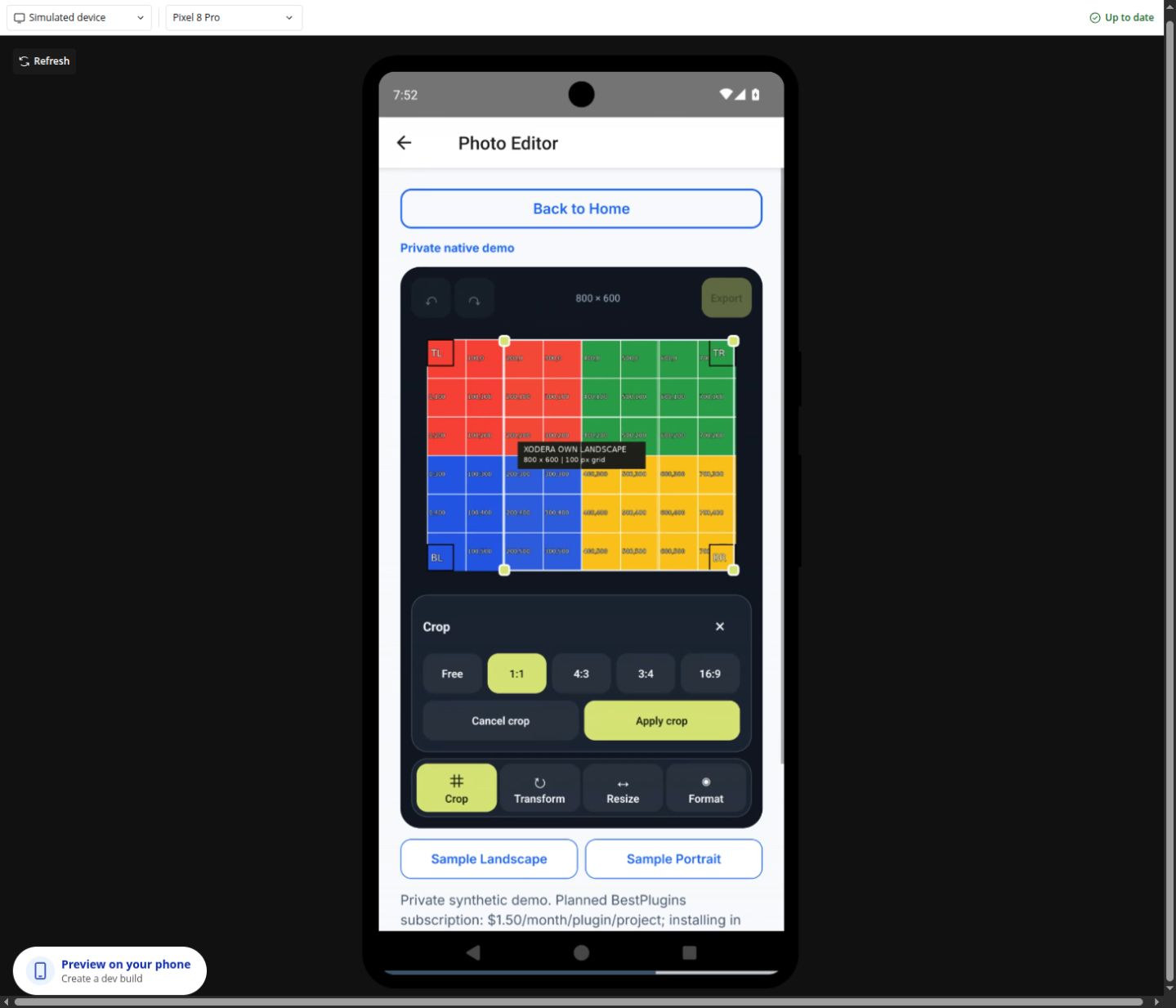
After source_loaded, run Begin crop. Choose 1:1 for an avatar, adjust the crop and use Apply crop. Cancel crop leaves the image unchanged.
Use Rotate, Flip or Resize if needed. Undo and Redo move through completed edits; Reset edits restores the original image.
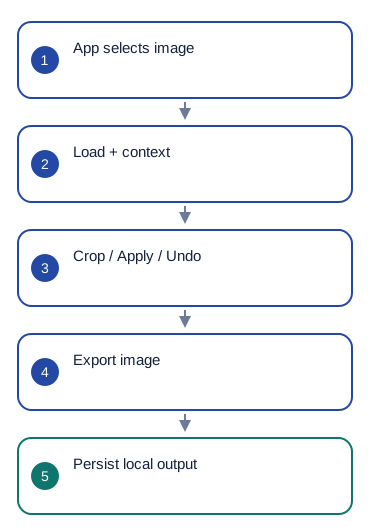
Run Export image. On export_completed, read output_uri, output_width, output_height and output_mime. Save or upload that copy using your chosen file-saving workflow, then store the saved file in the record.
Configure once
Key activation is planned for this plugin. Create or choose your Bubble app project in BestPlugins → Dashboard → Plugins. Choose Xodera Photo Editor Native, copy its key, then open Bubble → Plugins → Xodera Photo Editor Native and paste it into licensing_api_key. Save once; then use the actions below. Each plugin in each project has its own key.
Select or capture the image with your app first. Give the editor the resulting readable image address. Camera and photo-library permissions belong to the picker you use.
Configure once
- Create or choose your Bubble app project at BestPlugins → Dashboard → Plugins.
- Choose this plugin and copy its project key.
- Open Bubble → Plugins → this plugin. Paste its project key into licensing_api_key and save.
- Add the element, choose your app data and build the workflow below.
- In the dashboard, review and confirm the 7-day card trial for this plugin. It then costs US$1.50/month per app project, including development and production. Cancel before the trial ends to avoid the first charge.
Installation and subscription
For Audio Player, Video Player, Photo Editor, Audio Recorder, Files Kit and Haptics: free Bubble installation, a 7-day trial with a card, then US$1.50 per month per plugin and app project. Development and production are included, with no operation cap. File-size and feature limits still apply. Review billing and cancellation before confirming. Other plugins remain unavailable for purchase.
Save the result in your app
Save the uploaded or permanently saved image into Profile.image or your attachment field. output_uri is a temporary file on the device, so first save that file with your chosen workflow. Then store output_width, output_height and output_mime as metadata. Keep the original image if you need both versions.
Failure, cancel and recovery
On source_load_failed or editor_error, show error_code and offer Load source. Cancel operation stops accepting the unfinished result; wait until is_busy=no before starting another edit. Clear session clears the editor, not an image already saved elsewhere.
Capabilities and limits
JPEG and PNG export; quality 0–1; maximum output side 1–4096 pixels. Input: up to 15 MiB and 20 megapixels. Up to 20 completed edits. Crop choices: free, 1:1, 4:3, 3:4 and 16:9. No built-in camera, filters, text overlays, perspective correction, WebP export or automatic upload.
Settings, actions and results
Use these names in Bubble. Planned features are marked separately.
Available beta settings
Element settings
source_url · textdocument_context · textis_active · yes_nodisabled · yes_noshow_controls · yes_nocrop_aspect · textexport_format · textexport_quality · numberexport_max_dimension · numberallow_upscale · yes_noui_text_json · textlanguage · textStates
editor_status · textis_busy · yes_nohas_image · yes_nohas_changes · yes_nocan_undo · yes_nocan_redo · yes_noimage_width · numberimage_height · numberoutput_uri · textoutput_width · numberoutput_height · numberoutput_bytes · numberoutput_mime · texterror_code · textcrop_active · yes_nocrop_rect_json · textEvents
source_loadedsource_load_failededit_appliededit_undoneedit_redoneeditor_resetexport_startedexport_completedoperation_cancellededitor_errorActions and their inputs
Load sourceBegin cropApply cropCancel cropRotateFlipResizeUndoRedoReset editsExport imageCancel operationClear sessionElement settings · 12
source_urltext · Default: ""- Example value
https://bestplugins.online/native-samples/avatar.jpg - Example Bubble expression
Selected Profile's image_url - Address of the selected audio, video or image file. Use a file type this plugin supports.
document_contexttext · Default: ""- Example value
<current-user-id> - Example Bubble expression
Current User's unique id - Stable value for this account or record. Use the same value when restoring its saved files or drafts.
is_activeyes_no · Default: true- Example value
yes - Example Bubble expression
GuideHost's view_is_active (your yes/no custom state) - Set yes while this view is open. Set no when leaving, so playback or current work can stop.
disabledyes_no · Default: false- Example value
no - Example Bubble expression
GuideHost's is_busy (your yes/no custom state) - Disable the element while your app is busy or this action is unavailable.
show_controlsyes_no · Default: true- Example value
yes - Example Bubble expression
App Settings' show_editor_controls - Show or hide the built-in controls.
crop_aspecttext · Default: "free"- Example value
1:1 - Example Bubble expression
Avatar Settings' crop_ratio - Use the current business record’s value; validate it against the limits below.
export_formattext · Default: "jpeg"- Example value
jpeg - Example Bubble expression
Format Dropdown's value - Use the current business record’s value; validate it against the limits below.
export_qualitynumber · Default: 0.85- Example value
0.85 - Example Bubble expression
Image Settings' quality - Use the current business record’s value; validate it against the limits below.
export_max_dimensionnumber · Default: 2048- Example value
2048 - Example Bubble expression
Image Settings' max_side - Use the current business record’s value; validate it against the limits below.
allow_upscaleyes_no · Default: false- Example value
no - Example Bubble expression
Allow upscale Checkbox is checked - Use the current business record’s value; validate it against the limits below.
ui_text_jsontext · Default: ""- Example value
{} - Example Bubble expression
App Settings' player_labels_json (supported keys only) - Optional JSON with supported button labels. Leave empty to use the built-in text.
languagetext · Default: "auto"- Example value
uk - Example Bubble expression
Current User's preferred_language - Set language=auto to follow a supported device or browser language. Enter a supported language code to choose it explicitly.
Actions and their inputs · 13
Load source
No action parameters
Begin crop
No action parameters
Apply crop
origin_xnumber · Default: —- Example value
0 - Example Bubble expression
Crop Settings' x (or omit all rectangle inputs) - Use the current business record’s value; validate it against the limits below.
origin_ynumber · Default: —- Example value
0 - Example Bubble expression
Crop Settings' y (or omit all rectangle inputs) - Use the current business record’s value; validate it against the limits below.
widthnumber · Default: —- Example value
512 - Example Bubble expression
Resize Width Input's value:converted to number - Use the current business record’s value; validate it against the limits below.
heightnumber · Default: —- Example value
512 - Example Bubble expression
Resize Height Input's value:converted to number - Use the current business record’s value; validate it against the limits below.
Cancel crop
No action parameters
Rotate
degreesnumber · Default: —- Example value
90 - Example Bubble expression
Rotation Dropdown's value - Use the current business record’s value; validate it against the limits below.
Flip
axistext · Default: —- Example value
horizontal - Example Bubble expression
Flip Direction Dropdown's value - Use the current business record’s value; validate it against the limits below.
Resize
widthnumber · Default: —- Example value
512 - Example Bubble expression
Resize Width Input's value:converted to number - Use the current business record’s value; validate it against the limits below.
heightnumber · Default: —- Example value
512 - Example Bubble expression
Resize Height Input's value:converted to number - Use the current business record’s value; validate it against the limits below.
Undo
No action parameters
Redo
No action parameters
Reset edits
No action parameters
Export image
No action parameters
Cancel operation
No action parameters
Clear session
No action parameters
States and events
States
editor_status · textCurrent result of this action. Use the matching completion event before saving success.
is_busy · yes_noWork is still in progress. Wait before starting another action.
has_image · yes_noCurrent value for the selected item. Read it after the related event.
has_changes · yes_noCurrent value for the selected item. Read it after the related event.
can_undo · yes_noCurrent value for the selected item. Read it after the related event.
can_redo · yes_noCurrent value for the selected item. Read it after the related event.
image_width · numberCurrent value for the selected item. Read it after the related event.
image_height · numberCurrent value for the selected item. Read it after the related event.
output_uri · textFile location on this device. Save or upload the file separately if it must be kept online.
output_width · numberCurrent value for the selected item. Read it after the related event.
output_height · numberCurrent value for the selected item. Read it after the related event.
output_bytes · numberCurrent value for the selected item. Read it after the related event.
output_mime · textCurrent value for the selected item. Read it after the related event.
error_code · textError information for the last action. Show a helpful message and offer the relevant retry.
crop_active · yes_noCurrent value for the selected item. Read it after the related event.
crop_rect_json · textCurrent value for the selected item. Read it after the related event.
Events
source_loadedWhen this event occurs, read the related states from the same element.
source_load_failedWhen this event occurs, read the related states from the same element.
edit_appliedWhen this event occurs, read the related states from the same element.
edit_undoneWhen this event occurs, read the related states from the same element.
edit_redoneWhen this event occurs, read the related states from the same element.
editor_resetWhen this event occurs, read the related states from the same element.
export_startedWhen this event occurs, read the related states from the same element.
export_completedWhen this event occurs, read the related states from the same element.
operation_cancelledWhen this event occurs, read the related states from the same element.
editor_errorWhen this event occurs, read the related states from the same element.
Questions developers ask
Is output_uri a Bubble File?
No. It is a local cache path. Persist it through a proven local saver or uploader before storing a cloud file reference.
How does the subscription work?
For Audio Player, Video Player, Photo Editor, Audio Recorder, Files Kit and Haptics: free Bubble installation, a 7-day trial with a card, then US$1.50 per month per plugin and app project. Development and production are included, with no operation cap. File-size and feature limits still apply. Review billing and cancellation before confirming. Other plugins remain unavailable for purchase.
More product examples
Related guides
For help, tell us which plugin and device you use, the action you tried and what happened. Use an example without personal data. Never share your key or private files.